When organizing an online vote, organizers should ensure that every eligible voter can access the voting platform under appropriate conditions, including those who do not have access to a computer, smartphone, or suitable internet connection.
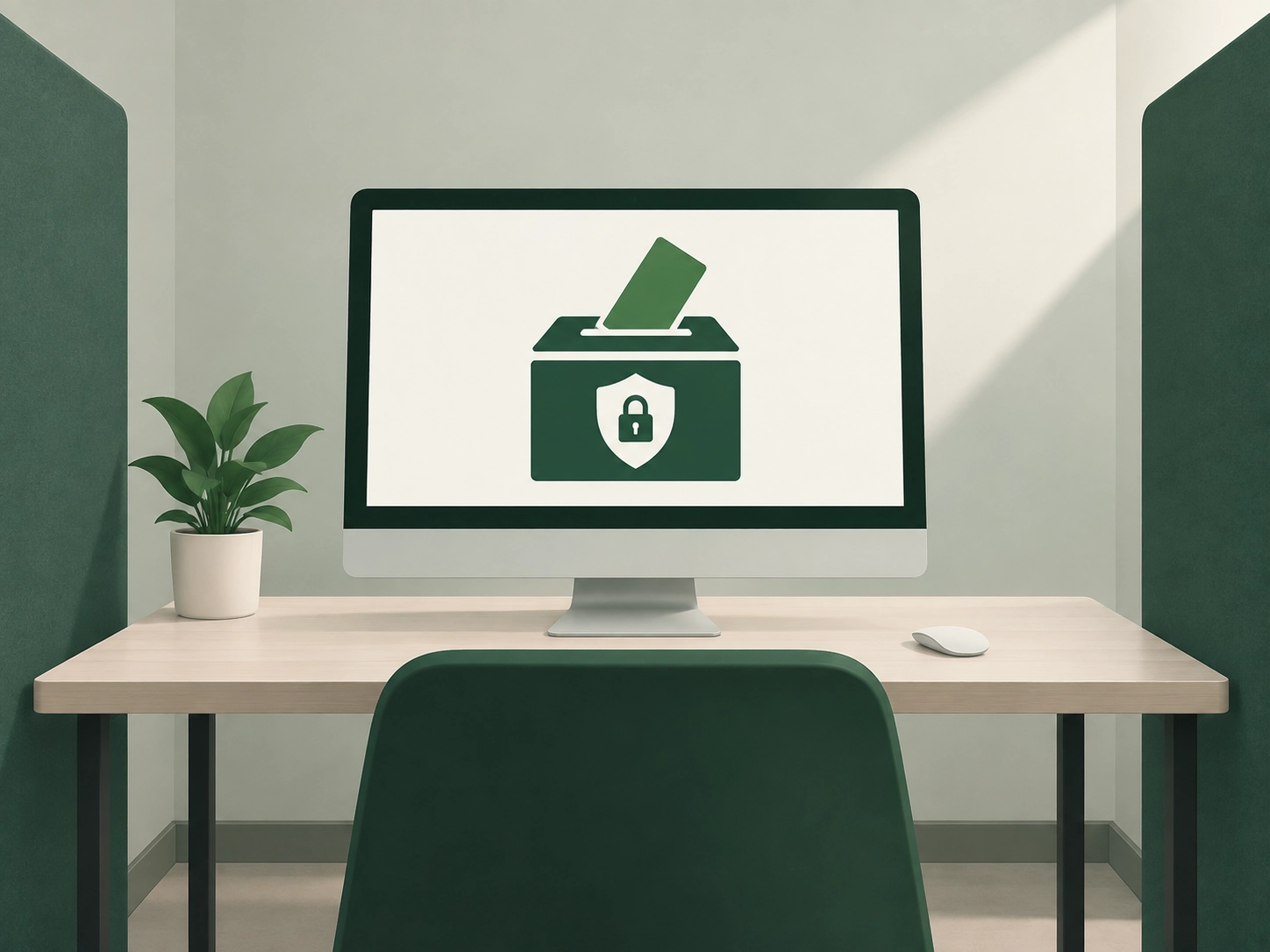
Providing a dedicated voting computer, sometimes referred to as an online voting kiosk, is a simple way to provide this access.
However, a computer shared by multiple voters should not be configured like a standard workstation.
It should allow each voter to cast their vote privately, prevent access to other computer functions and, most importantly, reset the environment between voters so that no information from the previous voter remains accessible.
In this guide, we explain how to set up a secure online voting kiosk, using our recommended configuration based on Windows 10/11 and Microsoft Edge.
1. Why provide an online voting kiosk?
One of the main advantages of online voting is that voters can usually cast their vote using their own device, such as a computer, smartphone, or tablet.
However, some voters may not have access to a suitable device or internet connection.
This may apply, for example, to people working in factories, warehouses, production facilities, or other environments where individual computer access is not routinely available.
Providing one or more dedicated voting kiosks can address this issue.
A voting kiosk can also provide an alternative for voters who experience technical difficulties with their own device.
This approach can be used for many types of online votes, including association elections, board or member elections, general meetings, university elections, organizational elections, consultations, and other electronic voting processes.
The objective remains the same: to provide every voter with convenient access to the online voting system while maintaining voter privacy.
2. Where should the online voting kiosk be installed?
The location of the voting kiosk is just as important as its technical configuration.
The voting station should be easily accessible during the designated voting period, while allowing each voter to vote privately and without being observed.
For example, the kiosk can be installed:
- in a dedicated office;
- in a meeting room;
- in a temporary voting area;
- in a quiet space away from busy walkways.
The screen should not be directly visible to other people in the room or to voters waiting to use the kiosk.
Where necessary, a privacy screen or physical partition can be installed.
Organizers should also make sure that no surveillance camera or other monitoring system can capture the screen or reveal the choices made by a voter.
The objective is to reproduce, in a digital environment, the privacy normally associated with a voting booth.
3. What computer setup should you use for an online voting kiosk?
For a computer that will be shared by multiple voters, we recommend using a Windows 10/11 PC that supports kiosk mode and runs Microsoft Edge.
Windows provides a dedicated kiosk feature that can create a highly restricted environment in which the user can access only the browser and the online voting platform.
The voter should therefore not have access to:
- the Windows desktop;
- the taskbar;
- files stored on the computer;
- other applications;
- Windows settings;
- administrative functions.
Microsoft Edge can also operate in InPrivate mode within this environment and can be configured to automatically reset the browsing session after a defined period of inactivity.
This combination is particularly suitable for an online voting station that will be used successively by multiple voters.
4. How to configure Windows and Microsoft Edge in kiosk mode
The setup is relatively straightforward on a Windows 10/11 computer that supports kiosk mode and has Microsoft Edge installed.
The initial configuration must be performed from a Windows account with administrator privileges.
Configure Windows kiosk mode: step by step
From the administrator account:
- Open Settings.
- Select Accounts.
- Select Other users.
- Locate Set up a kiosk or Kiosk.
- Select Get started.
- Create a dedicated account, for example: Vote.
- Select Microsoft Edge as the kiosk application.
- Select the mode intended for public browsing.
- Enter the URL of the online voting platform.
For a vote organized with Voteer, the URL used to access the voting platform is:
Once the configuration is complete, opening the dedicated voting session automatically launches Microsoft Edge in the configured kiosk environment.
The voter is taken directly to the online voting platform and does not have access to the standard Windows environment.
Why use kiosk mode for online voting?
Simply placing a shortcut to the voting platform on the desktop of a standard computer does not provide the same level of control for a shared voting station.
Kiosk mode helps restrict the computer to its intended purpose: voting.
Voters cannot use the device to browse local files, launch other applications, or modify the computer's configuration.
5. Why use InPrivate browsing on an online voting kiosk?
An online voting kiosk may be used successively by many different voters. It is therefore important to prevent the browser from retaining personal information from the previous user.
When Microsoft Edge is configured for public browsing in kiosk mode, it operates in InPrivate browsing mode.
The voter does not need to manually enable private browsing.
This mode helps limit the local retention, once the browsing session is closed, of information such as:
- browsing history;
- cookies and temporary session data;
- information entered into forms;
- usernames or passwords used during the browsing session.
This is particularly useful on a shared voting computer because it helps prevent one voter from accessing information left in the browser by the previous voter.
InPrivate browsing and automatic reset: two complementary safeguards
InPrivate browsing should not be confused with the automatic reset of the voting kiosk.
If a voter physically leaves the computer while their session is still open, the next person could potentially see the page that was left on the screen.
InPrivate browsing should therefore be combined with an automatic reset after a period of inactivity. For a voting kiosk, we recommend setting this period to 5 minutes.
The two mechanisms serve different purposes:
InPrivate browsing → limits the retention of browsing data.
Automatic reset after inactivity → returns the kiosk to its initial state if a voter leaves the station without properly ending their session.
6. How to automatically reset the voting kiosk between voters
Automatic reset is an important safeguard on a voting kiosk that is used successively by multiple voters.
It is particularly useful if a voter leaves the kiosk without properly closing their session. After the configured period of inactivity, Microsoft Edge closes or resets the browsing session and returns to the initial environment for the next voter.
For an online voting kiosk, we recommend an inactivity period of 5 minutes.
Configure automatic reset: step by step
From the Windows administrator account:
- Open Settings.
- Select Accounts.
- Select Other users.
- Under Kiosk, select the dedicated voting account, for example Vote.
- Open the Microsoft Edge kiosk settings.
- Locate the setting related to restarting the browser after a period of inactivity.
- Set the inactivity period to 5 minutes.
- Save the configuration.
- Restart the computer and open the Vote session to verify that the setting works correctly.
What if the setting is not available in Windows?
Depending on the Windows version, edition, or the way computers are managed within your organization, this setting may not appear directly in the kiosk configuration interface.
In this situation, ask your IT department to verify and apply the relevant Microsoft Edge kiosk setting:
Reset on inactivity / kiosk idle timeout = 5 minutes
The objective is straightforward: after 5 minutes without user activity, the browsing session should be reset and the browser should return to its initial state.
Always test the automatic reset before voting begins
Before opening the online vote, perform a complete test under real-world conditions:
- open the kiosk session;
- access the online voting platform;
- begin navigating as a voter would;
- leave the computer completely inactive;
- wait for the configured 5 minutes;
- verify that Microsoft Edge resets the current browsing session;
- confirm that the browser automatically returns to the kiosk home page.
For a Voteer voting kiosk, the computer should return to:
The next voter should see a clean environment without access to the previous user's browsing session or information.
Why use a 5-minute inactivity period?
A timeout that is too short could interrupt a voter who is simply taking time to read a question or information displayed on the screen.
On the other hand, a timeout that is too long could leave a session unnecessarily exposed if the voter walks away without closing it.
For this reason, 5 minutes is our recommended inactivity period for an online voting kiosk, although this can be adjusted depending on the voting process and the information voters are expected to review.
Provide clear instructions for voters
Automatic reset should be considered a safeguard in case a voter forgets to end their session. It should not replace the normal process for completing and closing a voting session.
A simple notice can be displayed next to the kiosk:
“When you have completed your vote, please follow the instructions displayed on the screen and leave the voting station ready for the next voter.”
Combining kiosk mode, InPrivate browsing, normal voting session closure, and automatic reset after inactivity helps ensure that the station is ready for each new voter.
7. How to secure the Windows user account
The account used by voters should be dedicated exclusively to the voting kiosk.
It should remain a standard user account without administrator privileges.
Voters should not be able to:
- install software;
- change Windows settings;
- access other applications;
- access files stored on the computer;
- modify network settings;
- access administrative functions.
Administrator credentials should only be available to people authorized to manage the computer.
Separating the administrator account from the voting account is a simple but important security measure.
8. How to secure the BIOS/UEFI and computer startup
To further secure the voting kiosk, it is also recommended to protect the computer's startup configuration.
A person with physical access to the voting station should not be able to easily bypass the Windows kiosk environment by booting the computer from another device.
From the computer's BIOS/UEFI:
- restart the computer and access the BIOS/UEFI;
- set a BIOS/UEFI administrator password;
- verify that Secure Boot is enabled;
- where appropriate, disable booting from external devices, particularly USB devices;
- keep the Windows system drive as the primary boot device.
The key used to access the BIOS/UEFI varies depending on the computer manufacturer. Common keys include F2, F10, F12, Delete, or Esc.
These settings can be configured by the organization's IT department before the computer is made available to voters.
9. How to ensure physical security and voter privacy
Technical security alone is not enough. The online voting kiosk should also be installed in a way that protects the equipment and, most importantly, maintains voter privacy.
Physically secure the computer
If the voting kiosk will remain accessible for several hours or days, consider securing it with an appropriate security cable or laptop lock.
Depending on the environment, the IT team may also restrict the use of USB ports to prevent unauthorized devices from being connected.
Position the screen correctly
The screen should be positioned so that only the voter can see the choices displayed.
A privacy screen can be added if the layout of the room does not sufficiently prevent side viewing.
One voter at a time
The voting kiosk should be used by one voter at a time.
If other voters are waiting, sufficient distance should be maintained to prevent them from seeing the screen.
Provide technical assistance without compromising privacy
A staff member may be available nearby to resolve hardware issues or explain the general operation of the voting station.
However, this assistance should remain strictly technical.
The person providing assistance should not observe the voter's selections, participate in the voting process, or influence the voter.
Display simple voting kiosk instructions
A short notice next to the kiosk can remind voters:
- that only one person should use the kiosk at a time;
- that voting should take place privately;
- how to access the online vote;
- how to properly complete the session;
- who to contact if technical assistance is required.
Clear instructions can make a significant difference, particularly when the voting kiosk is operating as a self-service station.
10. What rules should be defined before the online vote?
The use of an online voting kiosk should be planned as part of the overall voting process.
Before voting begins, it is useful to define:
- the number of voting kiosks available;
- their locations;
- the days and hours when they can be accessed;
- who is responsible for installing and testing them;
- the measures used to maintain voter privacy;
- how technical assistance will be provided;
- what happens if a computer or internet connection fails;
- how the kiosk is reset between voters.
These arrangements can be documented in the rules or procedures governing the vote, so that everyone involved understands how the voting stations will operate.
The objective is not necessarily to document every technical Windows setting, but to clearly define how voters can access the online voting system and how their privacy will be protected.
11. Online voting kiosk checklist
Before online voting begins, perform a complete test of every voting kiosk.
Computer configuration
☐ Windows is up to date
☐ Microsoft Edge is up to date
☐ Kiosk mode is enabled
☐ The voter account does not have administrator privileges
☐ The online voting platform opens automatically
☐ The Windows desktop and other applications cannot be accessed
☐ InPrivate browsing works as expected
☐ No passwords are stored
☐ The inactivity timeout is set to 5 minutes
☐ Automatic reset has been tested
Computer security
☐ BIOS/UEFI is protected where appropriate
☐ Secure Boot is enabled
☐ Booting from external devices is disabled where appropriate
☐ The computer is physically secured where necessary
Internet connection
☐ The internet connection is stable
☐ The online voting platform is accessible
☐ The organization's firewall or proxy does not block the voting platform
☐ A complete test has been performed before voting begins
Voter privacy
☐ The screen cannot be seen by other voters
☐ Only one voter can access the station at a time
☐ No surveillance system can capture the voter's selections
☐ People waiting are kept at an appropriate distance
Organization
☐ Voters know where the voting kiosk is located
☐ Access hours have been communicated
☐ User instructions are available
☐ A technical support procedure has been defined
☐ A procedure is in place in case of computer or internet failure
Conclusion
Providing an online voting kiosk is an effective way to ensure that voters can access an online vote even when they do not have a suitable personal device or internet connection.
However, a shared voting station should not be configured like a standard computer.
For a simple and secure deployment, we recommend a Windows 10/11 PC running Microsoft Edge in kiosk mode.
Several measures can then be combined to create an environment suitable for online voting: restricting the computer to the browser and voting platform, using a non-administrator account, InPrivate browsing, automatic reset after 5 minutes of inactivity, securing the computer's startup configuration, and physically protecting the equipment.
The physical setup should also protect voter privacy: the screen should be shielded from view, only one voter should use the station at a time, and any assistance should remain strictly technical.
By configuring and testing these elements before voting begins, organizers can provide an online voting kiosk that is simple for voters to use, easy to administer, and secure.