Run Secure Voting Directly in Zoom Meetings
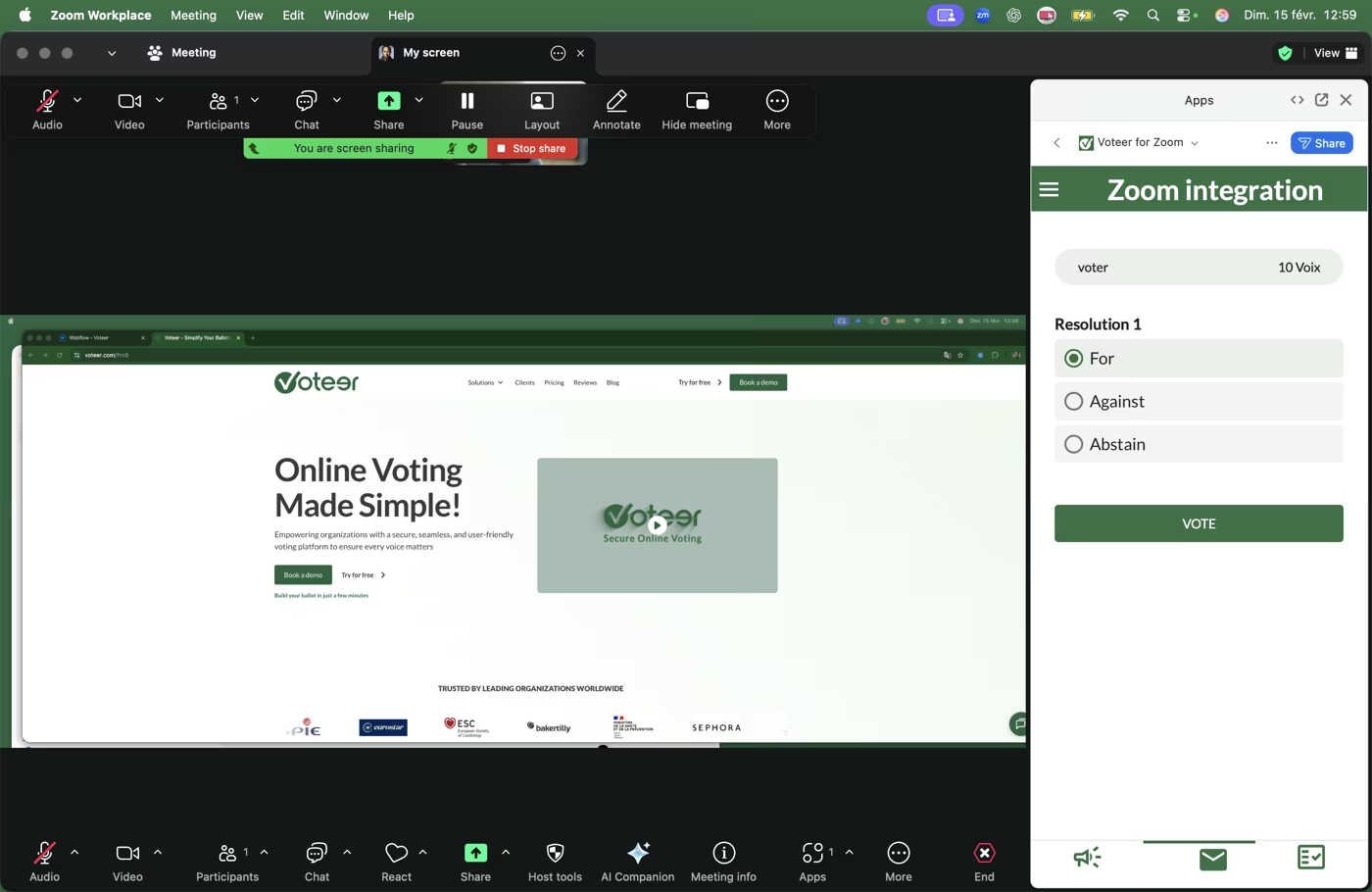
Organize secure, transparent and real-time voting directly within your Zoom Meetings and Webinars.
With Voteer’s Zoom integration, you can launch ballots instantly without leaving your Zoom session — whether for assemblies, elections or decision-making processes.
🔥 Key Benefits
Seamless Zoom Integration
Launch voting directly inside Zoom without switching tools or disrupting your Zoom meeting flow.
Secure & Verifiable Voting in Zoom
Ensure vote integrity, confidentiality and verifiability for every ballot conducted within Zoom.
Built for Organizations using Zoom
Used by companies, public institutions and non-profits to run reliable and transparent voting sessions directly in Zoom.
Flexible Zoom Voting for Any Ballot
Easily manage assemblies, elections, referendums and more within your Zoom Meetings and Webinars.
⚡ How It Works Create your ballot in Voteer Backstage
- Create your ballot in Voteer Backstage
- Start your Zoom meeting or webinar
- Open Voteer directly from the Zoom Apps panel
- Launch voting instantly
👉 No technical setup required
👉 Learn how to set it up step by step
🔐 Secure Voter Access
Each participant accesses the ballot within Zoom using a unique voter ID provided by the organizer.
This ensures:
- secure authentication
- controlled access
- one voter, one vote
🎯 Use Cases
- General assemblies in Zoom
- Board meetings in Zoom
- Elections in Zoom
- Work council elections in Zoom
- Consultations in Zoom
- Refendums in Zoom
With Voteer, you can run secure, verifiable and seamless voting directly within your Zoom Meetings.