Presentation Mode in Live Votes is a powerful and very useful feature, especially during live voting sessions when you want to present the results in real time on a big screen (in a meeting room or during a hybrid event).
It transforms your votes into a professional visual experience for all participants.
What is Presentation Mode?
The Present feature provides a dedicated URL that you can share with participants or project directly. This web page is optimized for large-screen display and shows:
- A current question (Open status), or
- The results of a closed question
Here’s an example of what the Presentation Mode looks like:
You can clearly see:
- The question title (“vote 1”)
- “For” and “Against” results with percentages and progress bars
- Detailed statistics: abstentions, number of voters, votes cast, and participation rate
Key Benefit: It allows you to beautifully display open or closed voting questions with results that update automatically in real time. Perfect for live assemblies, general meetings, or any situation where you need to show the progress and results instantly to the audience.
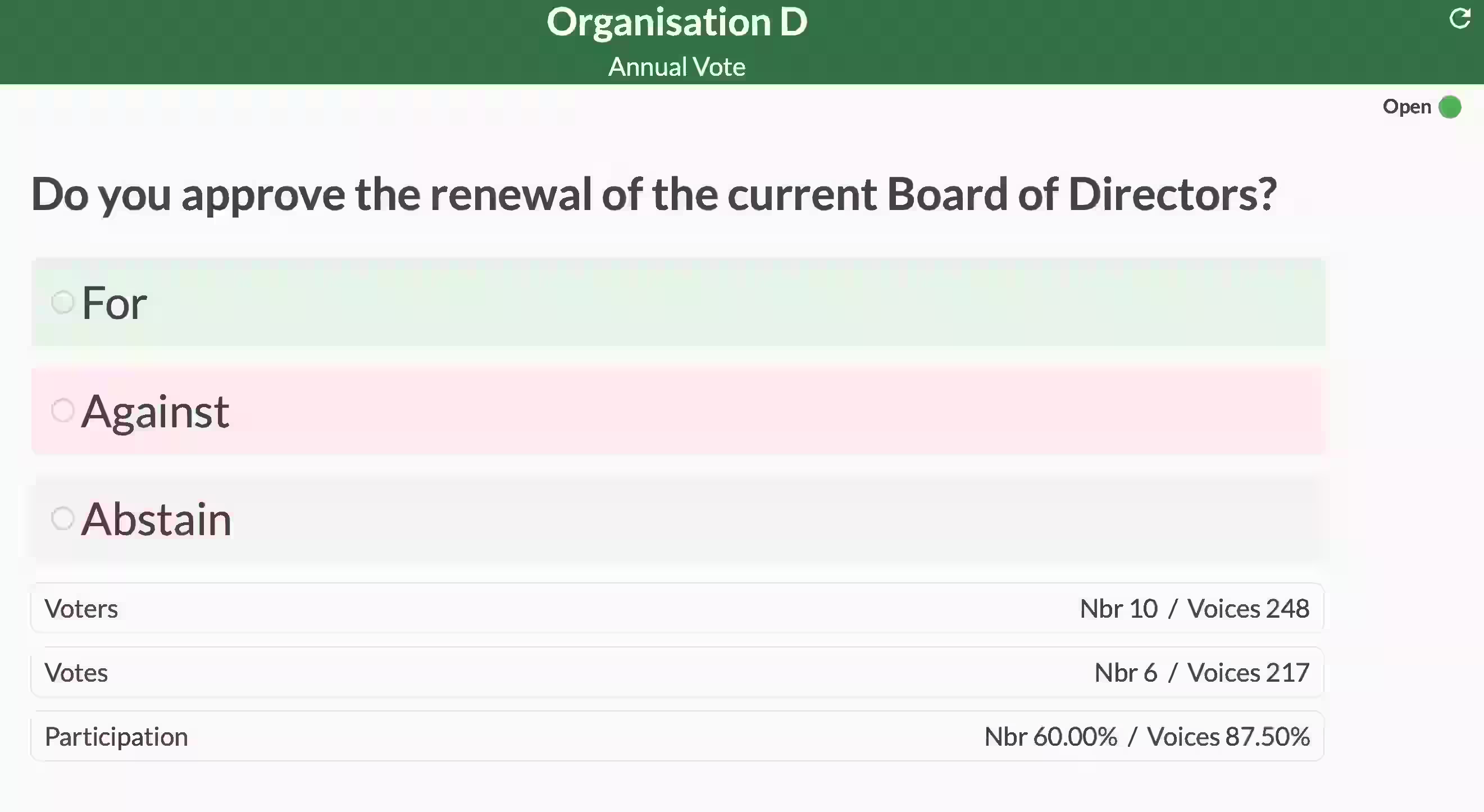
It is highly recommended to enable the “Display to Voters” option in the vote settings. This allows participants to transparently follow the evolution of the number of votes and the participation rate in real time before closing the resolution.
Key Features
1. Automatic Mode
A very convenient option allows you to activate Automatic Mode. Once enabled, the presentation automatically switches to the latest open or closed question without any manual intervention from the organizer. Perfect for smooth, fluid voting sessions.
If someone wants to review the results of a previous question (for example the first one), you can force the display using the “Present” option available in the Live Votes interface, by clicking on the three little dots on the right of the question.
2. Full Control for the Organizer
Even in Automatic Mode, the organizer retains complete control. At any time, you can choose to display a specific question using the available actions linked to each question.
3. Manual Refresh
A Refresh button is available to manually update the page — especially useful when the presentation is in full-screen mode.
4. Beyond Voting
Presentation Mode is not limited to votes. You can also share a question and its Q&A responses, making it perfect for animating live debates in a visual and engaging way.
How to Access It?
In the Live Votes interface, click on the Present button (in the top bar). You will find:
- The option to copy the Presentation Link
- The Automatic Mode toggle

Related Article
- How to Manage Q&A (Questions & Answers) in Voteer
Learn how to create, moderate, and display questions and answers during your live sessions.
→ How to Manage Q&A (Questions & Answers) in Voteer
Explore More Topics
- Why is the Tallying Ceremony Critical in Online Voting?
Discover why the tallying ceremony is a key moment to ensure transparency and trust in electronic voting.
Support
Need help?
👉 Email: support@voteer.com
👉 Or use the live chat directly in Backstage