The Q&A (Questions & Answers) module allows voters to ask questions directly to the organizers and interact with each other
Strengthen participant engagement by facilitating questions, answers, and discussions around the topics being voted on. It is an excellent tool to increase transparency and participation during a scrutin or a general meeting.
How to Access Q&A Settings
- Go to your ballot
- Click on Configurations in the left menu
- Scroll down to the Q&A section
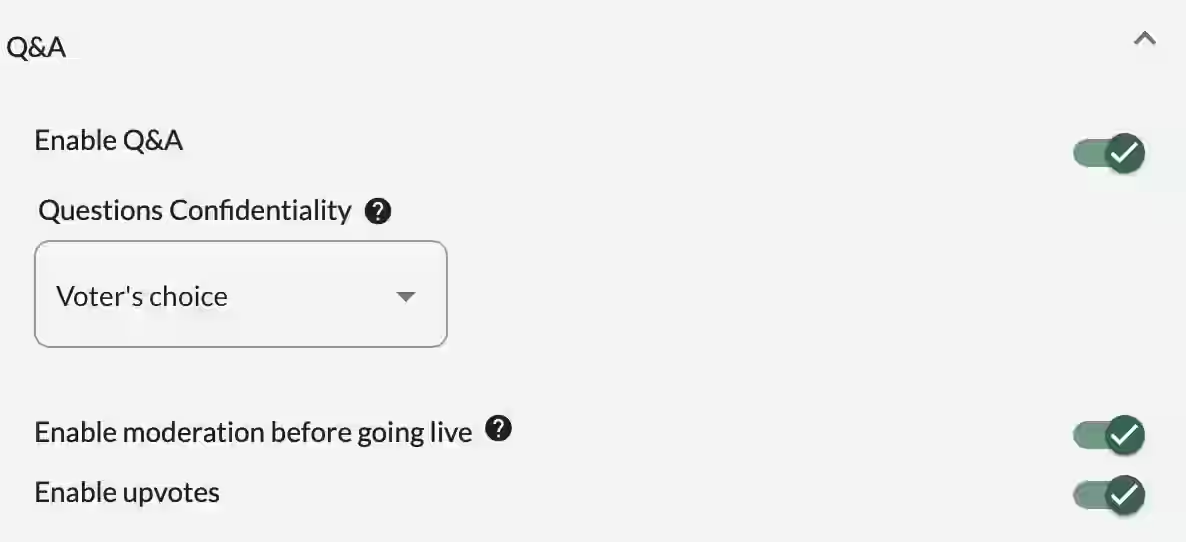
1. Activate the Q&A Module
- Enabled: A Q&A tab becomes visible to voters, allowing them to ask questions and interact with the organization.
- Disabled: The Q&A module is hidden from the voter interface.
2. Key Configuration Options
Confidentiality of Questions
You can choose the default confidentiality level:
- Voter’s choice (recommended)
- Anonymous by default
- Nominal (with name) by default
Moderation Before Publishing
- Enabled: All questions must be approved by a moderator before being published.
- Disabled: Questions are published immediately (you can still moderate them afterwards).
Enable Upvotes
- Enabled: Voters can upvote questions they find important.
- This helps highlight the most relevant questions for the organizers.
Responding to Questions (as Organizer)
Organizers can easily reply to questions directly from the Q&A tab or from the Live Votes section.
- Click on the message icon (small chat bubble) next to the question.
- Write your answer and publish it.
- The response will be visible to all voters in real time.
This feature is particularly useful during live sessions to provide immediate clarifications.

Presenting Q&A During Your Meeting
During a general meeting or live vote, you can project questions in Presentation mode:
- Next to each question, click on the three dots (…)
- Select Present
This allows you to display the question on screen for the entire room.
What Voters See
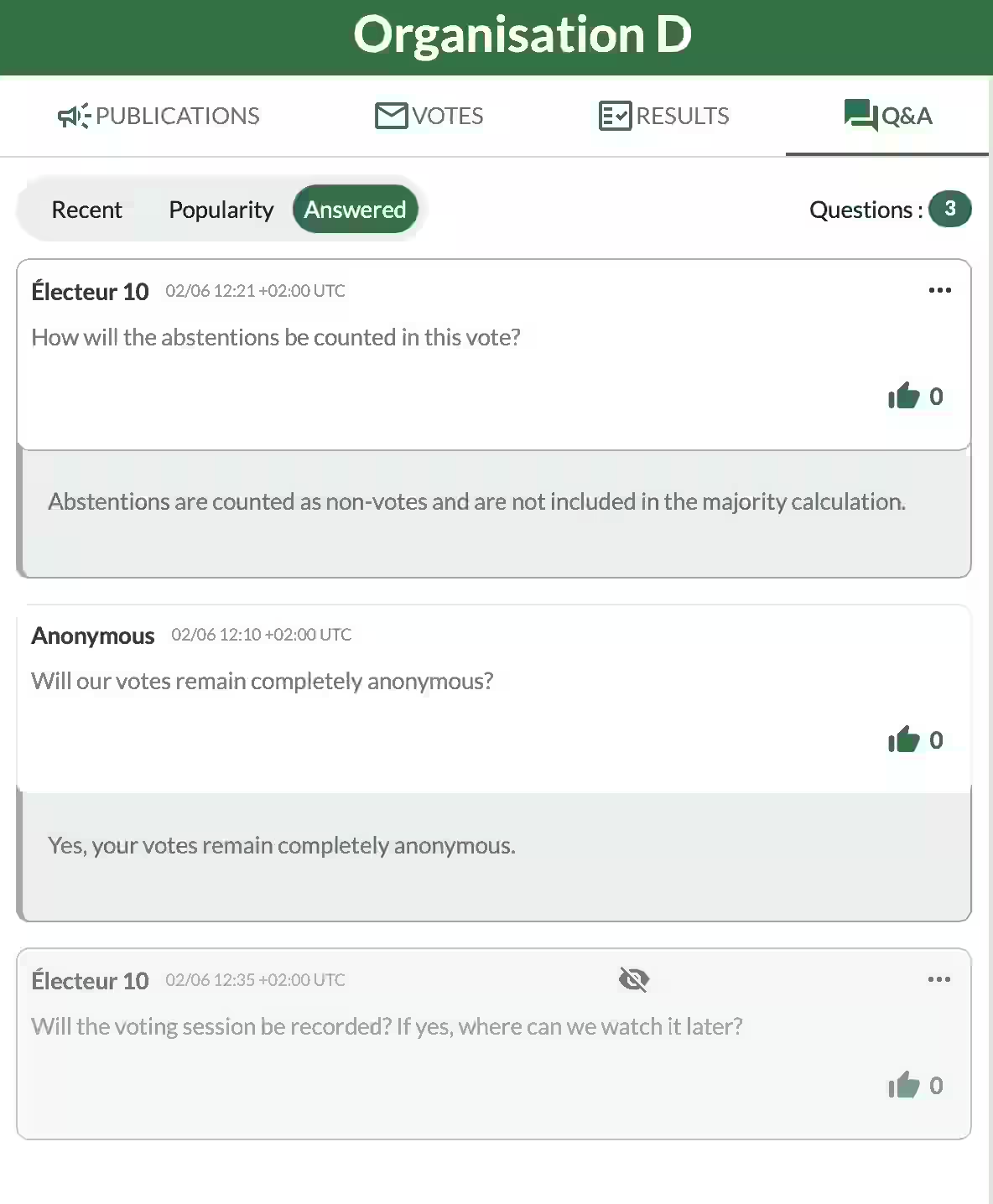
Voters have access to a clean and intuitive Q&A interface. They can:
- Submit new questions
- View all published questions and the organizers’ answers
- Upvote questions they consider important
They can sort the questions using three tabs:
- Recent — Shows the most recent questions
- Popularity — Shows questions with the most upvotes
- Answered — Shows only questions that have received a response from the organizers
An icon next to each question indicates its publication status (visible or hidden).
Related Article
- How to Manage Forms in Voteer Configurations
Learn how to create personalized questionnaires to collect additional voter information.
→ How to Manage Forms in Voteer Configurations
Explore More Topics
- Why is the Tallying Ceremony Critical in Online Voting?
Discover why the tallying ceremony is a key moment to ensure transparency and trust in electronic voting.
Support
Need help?
👉 Email: support@voteer.com
👉 Or use the live chat directly in Backstage