The Forms feature in Voteer allows organizers to create personalized questionnaires to collect additional information from voters. This is particularly useful for gathering logistical details, organizational data, or candidate-related information during general meetings or electronic votes.
How to Access Forms in Configurations
- Go to your ballot
- Click on Configurations in the left menu
- Scroll down to the Form section

1. Activate the Form Feature
- Enabled: You can create and distribute a personalized form to collect supplementary information from voters.
- Disabled: No form is proposed to voters.
Recommendation: Activate this feature if you need to collect extra data (logistics, dietary requirements, candidate questions, etc.).
2. Show Form on Login
- Enabled: A welcome screen with the form appears when the voter connects, encouraging them to complete it immediately.
- Disabled: The form remains accessible via the voter menu.
Note: You can enable or disable this option at any time during the scrutiny, even after responses have started being collected.
3. Define Form Recipients
You can choose who will receive the form:
- All voters — The form is shown to every participant.
- Voters registered as present — Only voters physically present (or marked as present) will see the form.
This option is especially useful for collecting information related to in-person attendance, such as:
- Dietary restrictions for meals
- Participation in cocktails or breaks
- Specific event constraints
4. Create Form Questions
When creating the form, you can add multiple questions and choose the response type for each:
- Single choice
- Multiple choice
- Free text
Additional option:
You can also attach files to the form when creating it, allowing you to provide supporting documents directly within the questionnaire.
Important:
- You can modify the form content (add, edit, or remove questions) even while the form is open and being filled by voters.
- All responses are centralized and available to the organizer.
How to View Form Responses (Reports)
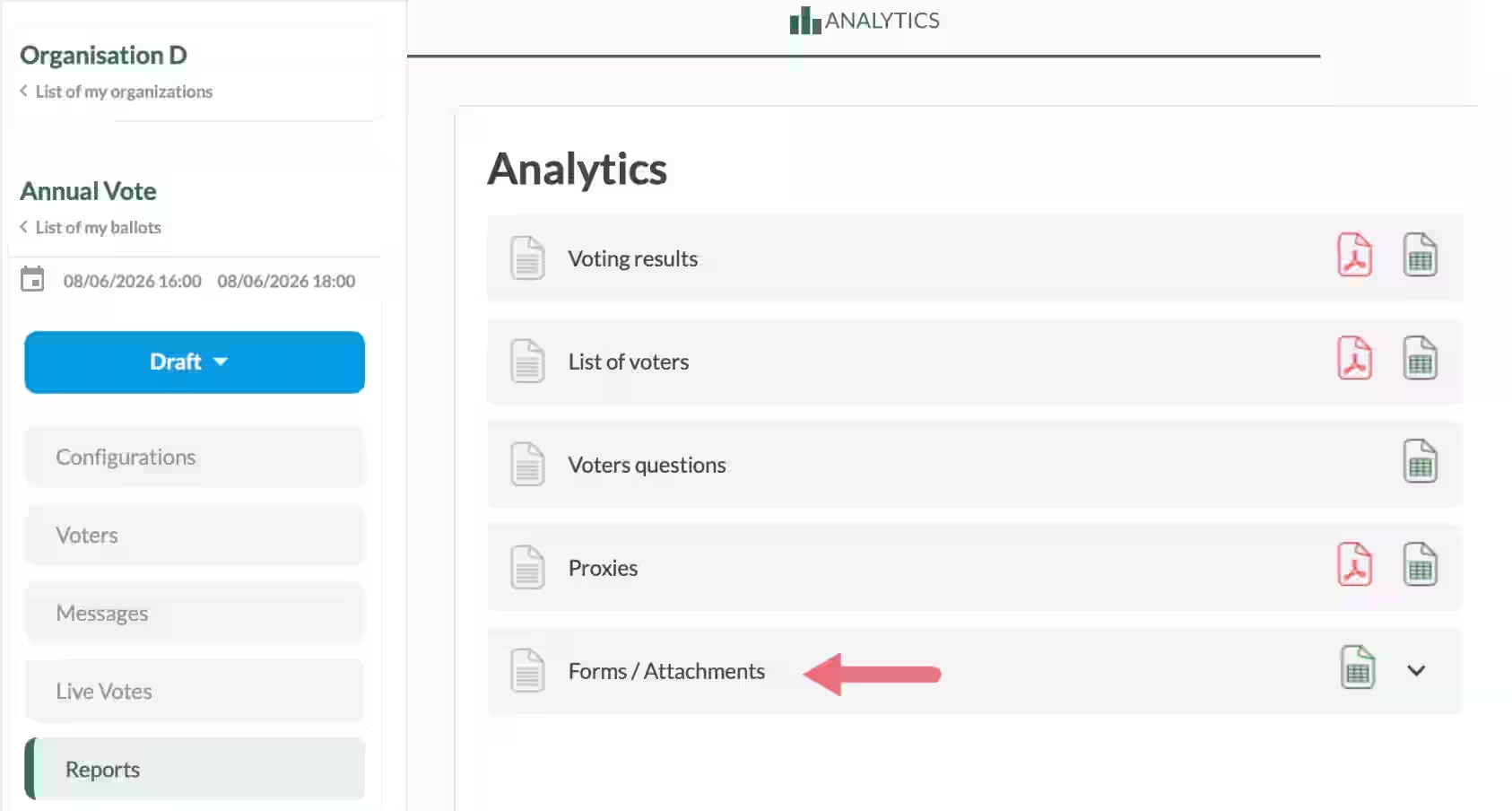
Once voters have answered the form, you can consult all the responses in the Reports section:
- Go to your ballot
- Click on Reports in the left menu
- Go to the Analytics tab
- Click on Forms/Attachements
In this report, you can:
- View all responses to the form questions
- Export the data in PDF or Excel format
- Analyze the answers in detail
What the Voter Sees
Voters can easily answer the form by checking the buttons (single or multiple choice) and filling text fields if required. A clear Submit button allows them to send their responses.

Related Article
- How to Manage Publications in Voteer
Learn how to configure the Publications tab and share documents with voters during live or scheduled votes.
→ How to Manage Publications in Voteer
Explore More Topics
- Voteer Now Integrates with Zoom: A Major Step Forward for Secure Online & Hybrid Voting
Discover how Voteer’s new Zoom integration enhances secure online and hybrid voting experiences.
Support
Need help?
👉 Email: support@voteer.com
👉 Or use the live chat directly in Backstage