Voteer offers a complete and flexible proxy voting system. Whether for general meetings, shareholder assemblies, or any structured vote, you can manage proxies automatically while maintaining full control and compliance.
This feature is particularly powerful because it adapts to different contexts: associations (where transparency is key) or listed companies (where confidentiality of shareholders is critical).
1. Activating Nominative Proxies
Nominative proxies allow a voter to delegate their voting rights to another voter.
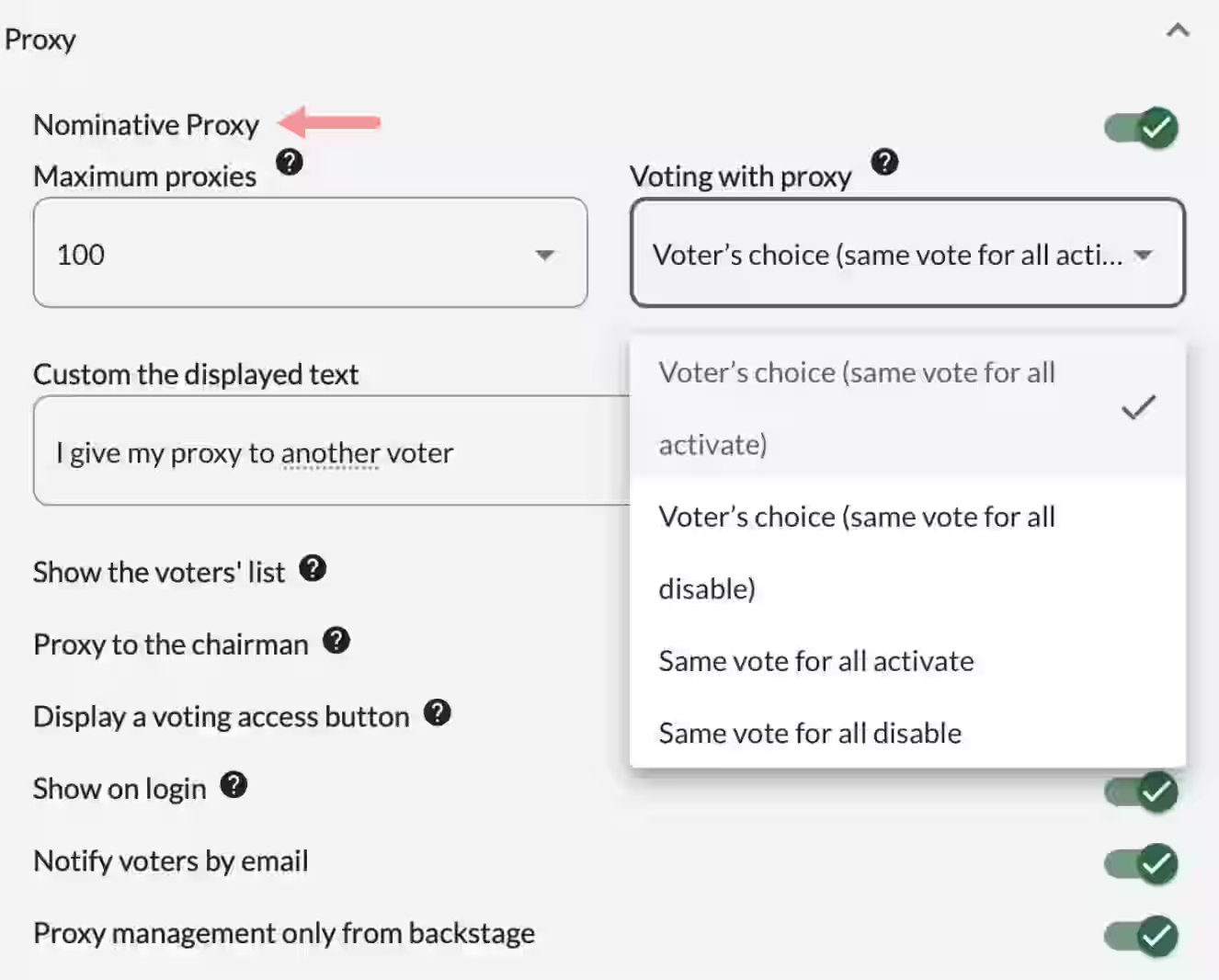
When this option is activated, four main parameters can be configured:
1.1 Maximum Number of Proxies Authorized
The organizer defines the maximum number of proxies one voter can receive.If this limit is exceeded, an error message appears indicating that the action is not allowed.
1.2 Voting with Proxies
Four options are available:
- Voter’s choice – Same vote for all activated by default: The voter can decide to vote the same way for themselves and all their proxies, or differently.
- Voter’s choice – Same vote for all deactivated by default: The voter must check the option if they wish to vote the same way for themselves and all their proxies.
- Same vote for all activated: The voter votes once and the same choice is applied to all their proxies.
- Same vote for all deactivated: The voter votes separately for themselves and for each of their proxies.
1.3 Customize Displayed Text
The organizer can personalize the text displayed to voters.Examples:
- “I give my proxy to another voter”
- “I give power to an associate”
1.4 Show the List of Voters
- Enabled: The voter has access to the complete list of voters to choose their proxy holder.
- Disabled: The voter must type the first letters of the last name to perform a search.
Benefit: Hiding the full list of voters is particularly useful for confidentiality reasons.
1.5 Notify Voters by Email
- Enabled: When a proxy is given or cancelled, the concerned voter automatically receives an information email.
- Disabled: No message is sent.
2. Proxy to the President
This option allows voters to automatically delegate their vote to the President of the meeting.
Key Points:
- Enabled: Voters can give their proxy to the President with no limit on the number of proxies the President can receive.
- Disabled: Voters cannot delegate their proxy to the President.
Important Note: When this option is activated, Voteer automatically creates a Voteer named President in the voter list. However, the President’s vote is not automatic. Someone must log in with the President’s account and cast the vote manually using the direct voting link.
From the Voter File (President):
- You can customize the displayed text.
- A direct voting link is available (highlighted in red).
- The President can access their voting interface via this specific link from the Voter menu.
3. Direct Access Button to Vote
This option allows you to display a prominent button that gives voters quick access to vote.
Key Settings:
- Enabled: Creates a specific button (with customizable text) that allows voters to vote by anticipation (before the official opening of the vote). This is very useful to inform and encourage voters to participate early.
- Disabled: Voters can only access the vote through the standard navigation menu.
Customize the Button Text
You can personalize the text of the button. Example:
- “Vote by anticipation now”
Tip: We recommend activating this button when you allow vote by anticipation, as it helps guide voters and encourages early participation. On the other hand, there is no need for this button if your vote is live only.
4. Show Proxy Options on Login
This option controls whether a dedicated proxy management screen appears when the voter logs in.
- Enabled: A specific page dedicated to proxy management appears automatically upon login. This encourages voters to manage their proxies immediately.
- Disabled: The proxy management feature is only accessible via the main menu in the voting interface.
This setting is useful to improve the voter experience by making proxy delegation more visible right after login, or to keep the login process simpler by moving proxy management to the menu.
5. Manage Proxies Only from Backstage
- Enabled: Only organizers can manage proxies from the Backstage interface. Voters cannot create or modify proxies from the voting app.
- Disabled: Voters can manage their proxies directly from the voting interface. Organizers can also manage proxies from the Backstage interface.
What the Voter Sees
When a voter wants to give a proxy, they see a clean interface titled “Proxy”.
They have two main choices:
- “I give my proxy to the President” → To automatically delegate their vote to the President.
- “I give my proxy to another voter” → To choose a specific voter.
If they select the second option, a dropdown list appears where they can search for the person by typing the first letters of their last name.
After making their choice, they simply click on the “Confirm” button to validate their proxy.
This interface is designed to be simple, fast, and user-friendly for voters.

6. Supervising and Managing Proxies
Voteer allows you to efficiently monitor and manage all proxies in real time.
Real-time Monitoring
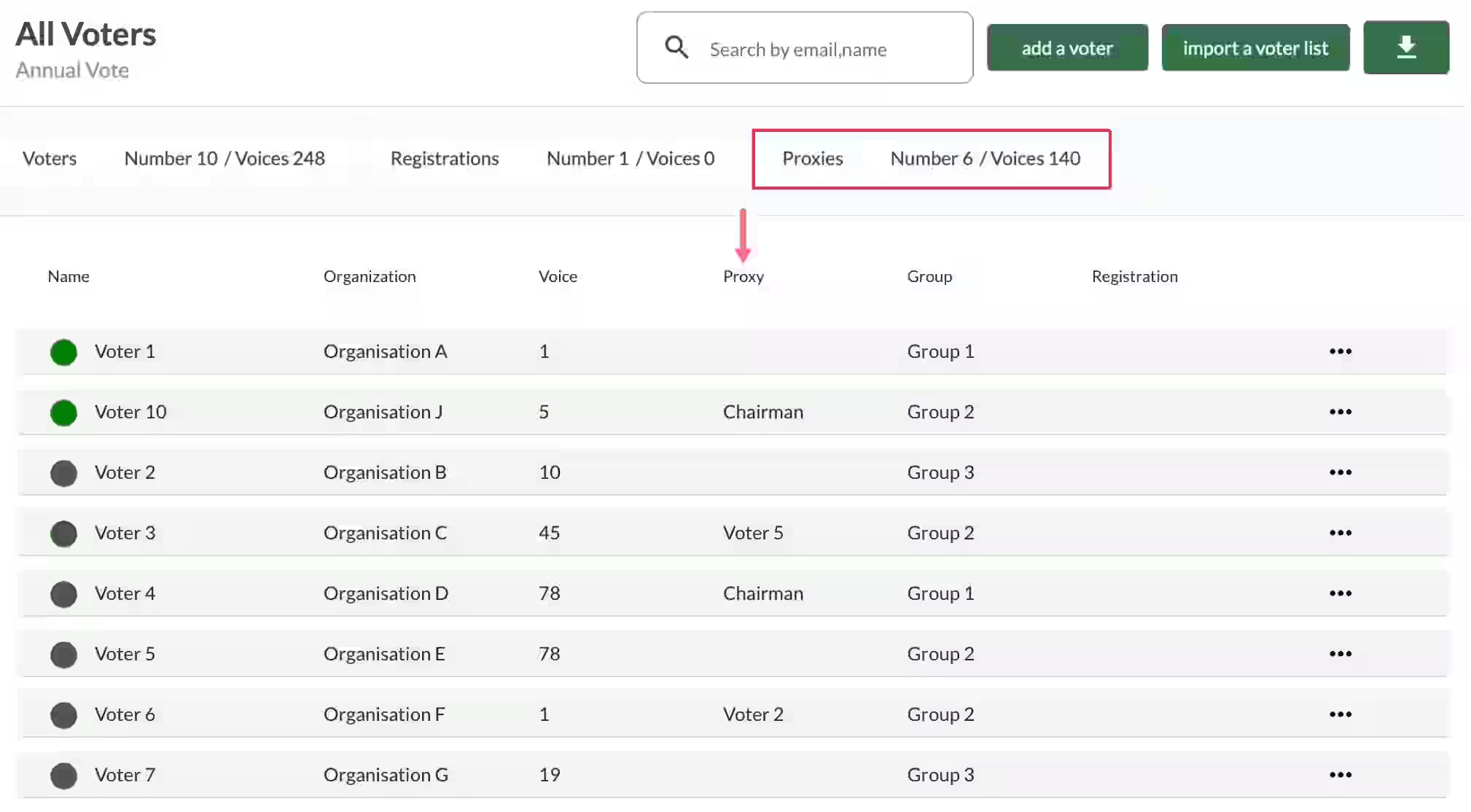
- From the Voters menu, you can follow the evolution of proxies live.
- You get a clear overview of who has given their proxy and to whom.
Proxies are displayed with dedicated cards and a specific column, giving you a clear overview of who has given their proxy and to whom.
Managing Proxies
- In each voter’s individual file, you can:
- View all proxies received or given
- Modify or cancel existing proxies
- Add new proxies manually if needed
This level of granularity is one of Voteer’s major strengths, allowing precise and reactive management throughout the voting period.
7. Reports on Proxies
Voteer generates detailed reports on proxies, allowing you to:
- See who gave proxies and to whom
- Know the total number of proxies per person
- Export the data for the general meeting
Important Error Messages
- If a voter has reached the maximum number of proxies allowed, a clear error message is displayed.
- If you attempt to assign a proxy to a voter marked as “Absent”, Voteer shows a warning message to prevent invalid delegations.
Related Article
- How to Manage Secret Ballot Voting in Backstage
Learn how to enable or disable secret ballot voting, configure mixed modes, and understand where to find individual votes when open mode is activated.
→ How to Manage Secret Ballot Voting in Backstage
Explore More Topics
- Why is the Tallying Ceremony Critical in Online Voting?
Discover why the tallying ceremony is a key moment to ensure transparency and trust in electronic voting.
Support
Need help?
👉 Email: support@voteer.com
👉 Or use the live chat directly in Backstage