Publications in Voteer allow organizers to share important documents, reports, PDFs, videos, and announcements with voters. There are two main areas to manage them:
- Configurations (setup before the vote)
- Live Votes (during the active ballot)
1. Publications Configuration (Settings)
This is where you enable and control the Publications feature for your ballot.
How to Access Configurations:
- Go to your ballot
- Click on Configurations in the left menu
- Scroll down to the Publications section
Available Options:
- Show the publications tab to voters
- Enabled: Voters will see the Publications tab.
- Disabled: The tab is hidden (recommended if you have no publications to keep the interface clean).
- Allow the editing/deletion of publications when the ballot is Live
- Enabled: You can add, modify, or delete publications even while the vote is running.
- Disabled: Publications are locked once the ballot starts.
Tip: Enable both toggles for maximum flexibility, especially during live votes.
Important Note: Once the scrutiny is ongoing, the Publications tab becomes visible to voters — even if the votes are not yet open. This allows electors to consult documents as soon as they receive the convocation.

2. Managing Publications
Once the ballot is active, you can manage publications directly from the Live Votes interface.
How to Access:
- Go to Live Votes in the left menu
- Click on the PUBLICATIONS tab (next to the VOTE tab)
In this section, you can:
- Add new publications
- Upload PDFs (max 100 MB)
- Create text content
- Embed videos or audio
- Add external content via iframe
- Edit or delete existing publications in real time
If no publications have been added yet, you will see “No announcements”.
Associating Publications
You can make publications more targeted by linking them to:
A. Electoral Colleges (Groups)
- Associate a publication with one or multiple electoral colleges.
- Only voters belonging to those groups will see the relevant documents.
- Ideal for organizations with different voter categories (ex: Board Members, Shareholders, Employees).
B. Associating Publications to Specific Questions / Resolutions
You can easily link a publication directly to a specific question or resolution.
- When creating or editing a question, find the “Choose publication” field.
- Select the relevant publication (for example: Annual Financial Report 2025).
- The linked publication will then appear alongside the question for voters.
This feature is particularly powerful as it provides the supporting material exactly when voters need it (for example, linking the financial report directly to the resolution asking for its approval).
What the Voter Sees
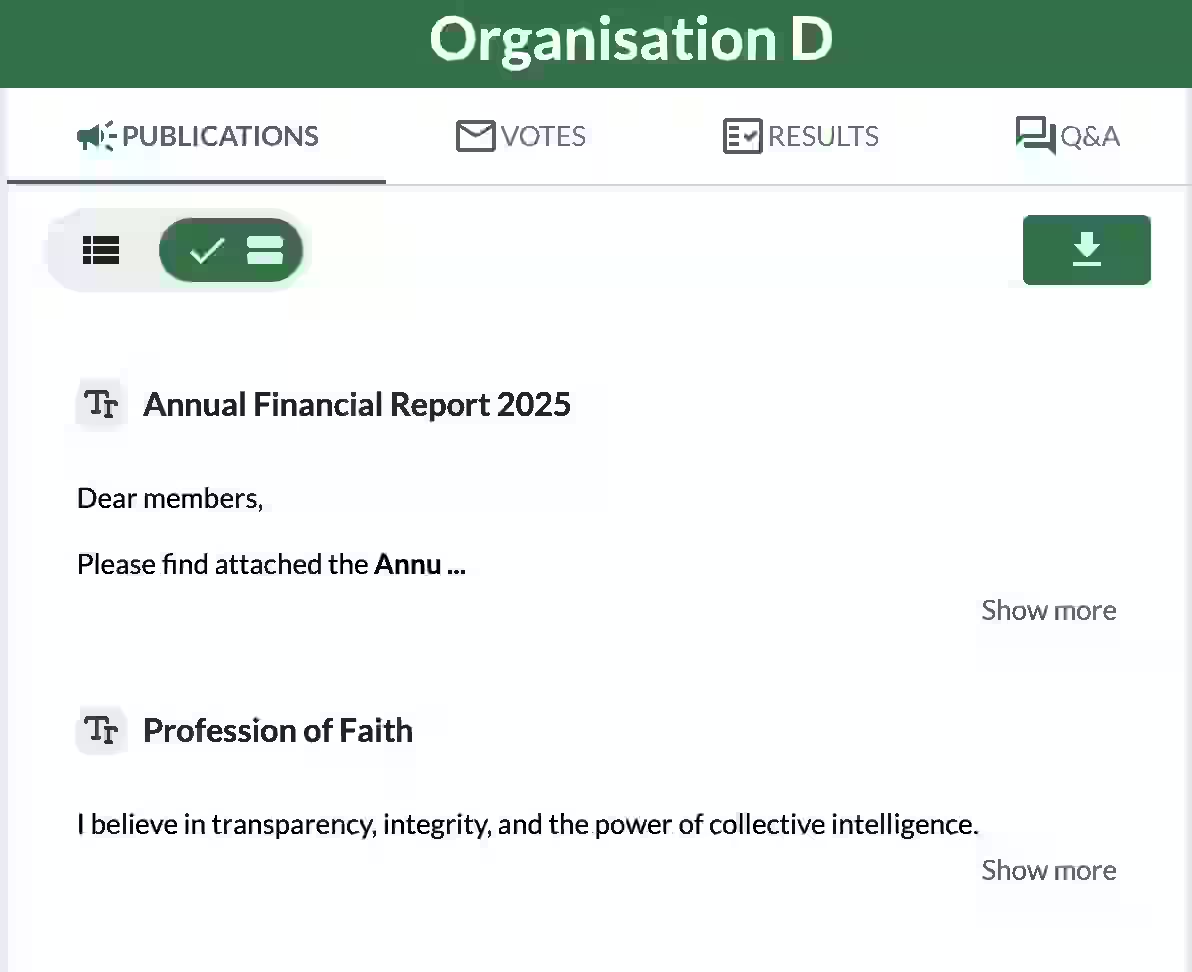
Voters can easily access and consult all shared publications through a clean and intuitive interface.
- Publications are displayed as individual cards with a title and a short preview.
- Each card includes a "Show more" link to expand and read the full content.
- A prominent download button at the top right allows voters to download all publications at once.
- Voters can open any document individually for a more detailed view.
This user-friendly design ensures that voters have quick, flexible, and convenient access to all important documents during the voting process
Frequently Asked Questions
Can voters download publications?
Yes — they can view, download, and print PDFs.
Can I add publications after the vote has started?
Yes, if you enabled “Allow editing/deletion when the ballot is Live”.
Are publications visible only during the vote?
They remain accessible in the results interface after the vote ends (unless deleted).
Related Article
- How to Manage Secret Ballot Voting in Backstage
Learn how to configure and manage secret ballot voting settings for maximum confidentiality and compliance.
→ How to Manage Secret Ballot Voting in Backstage
Explore More Topics
- Everything You Need to Know About the Scrutineer in a General Meeting
Discover the role, responsibilities, and best practices for the scrutineer during general meetings and electronic votes.
Support
Need help?
👉 Email: support@voteer.com
👉 Or use the live chat directly in Backstage