Managing attendance is a critical and often legal requirement during general meetings and formal assemblies. Voteer provides flexible and powerful tools to track who is present, whether in-person or via videoconference.
Activating Presence Management
- Enabled: Voters can be registered as present, whether they are attending in-person or via videoconference, through a Check-In system. The data is automatically recorded in the attendance sheet.
- Disabled: No attendance management is performed.

Check-in Methods
Voteer offers several ways to manage presence:
- Manual Check-in (Backstage)Organizers can manually mark a voter as present directly from the Backstage interface.
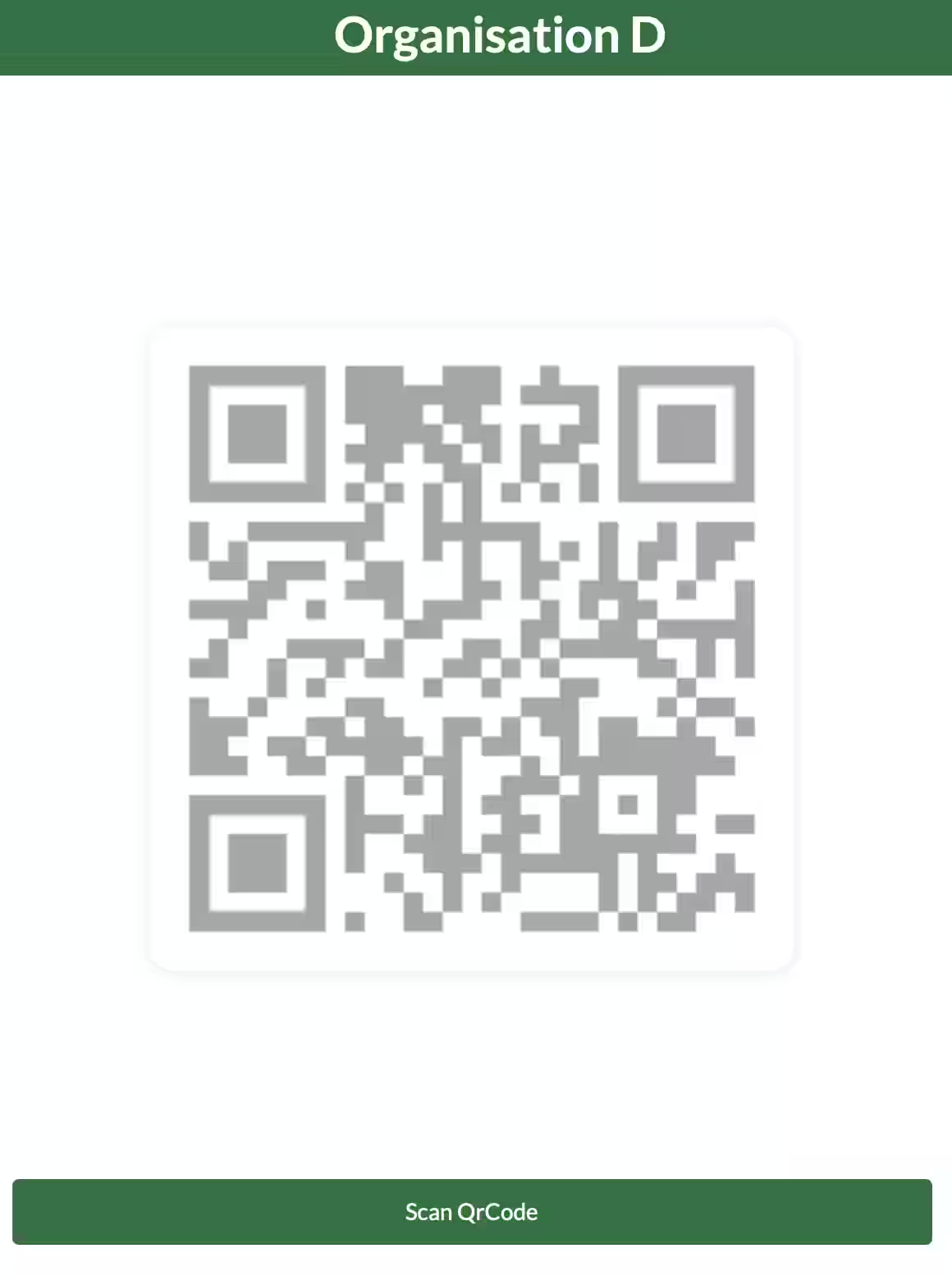
- QR Code Check-in (In-Person) – Check-in ApplicationVoteer provides a dedicated Check-in Application that can be installed on multiple devices (phones or tablets). The access link can be shared with all staff in charge of attendance control.
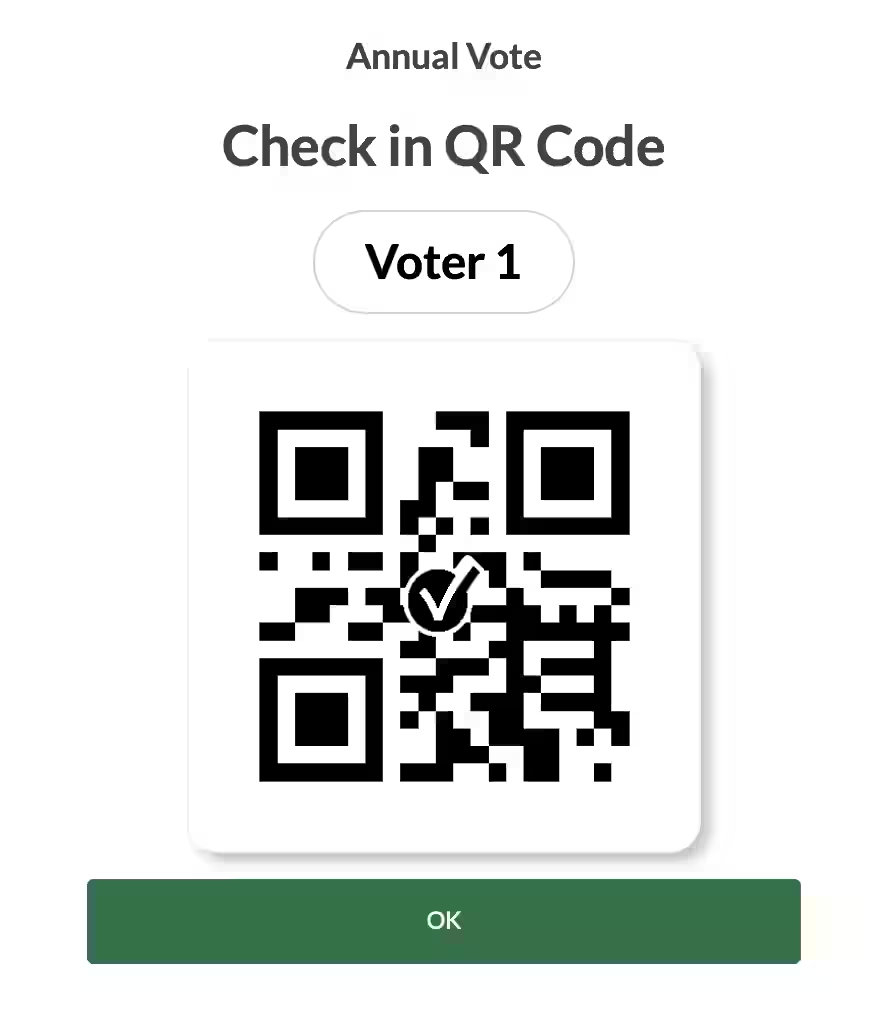
- When a voter logs in, a personal QR code is displayed on their screen.
- The operator clicks Scan QR Code to open the camera and scan the voter’s QR code.
- The voter’s main information (name, first name, organization) appears for identity verification.
- The Check-in button acts as a toggle:
- First scan = Check-in (present)
- Second scan = Check-out (left the room)
- Grey: Neutral (not registered)
- Green: Checked-in (present)
- Red: Checked-out (left)
- Videoconference Integration
- Microsoft Teams: Automatic presence detection when the voter clicks on the Voteer button inside a meeting, calendar, or channel.
- Zoom: No automatic detection — attendance must be managed manually.
Check-out Function
A Check-out button is available in the Voters menu. This allows organizers to mark all (or selected) voters as having left the room (for example, during a lunch break).
What the Voter Sees
- Upon login, voters may see their personal QR code (if Check-in is enabled).
- They can present this QR code to be scanned by an organizer.
- After scanning, they immediately see a green confirmation indicating they are checked in.
- They can also use the individual verification tool after voting to confirm their ballot was recorded.
What the Organizer Sees
To manage attendance, the organizer goes to the Configurations tab and activates Enable presence.
Once activated, they get:
- The Check-in App link, which can be shared with multiple collaborators (ushers, staff, etc.).
- A unique access code
Important: Scanning QR codes is only possible through the dedicated Check-in Application. It cannot be done with the standard camera or photo app on a phone.
Related Article
- How to Configure and Manage Proxies in Voteer
Learn how to configure nominative proxies, proxy to the president, and manage delegations.
→ How to Configure and Manage Proxies in Voteer
Explore More Topics
- How to Run a Successful Live and In-Person Vote? (Complete Guide)
Discover practical tips and best practices to successfully organize and run a smooth vote, whether participants are attending in person or joining via live videoconference.
Support
Need help?
👉 Email: support@voteer.com
👉 Or use the live chat directly in Backstage