For large General Assemblies and major institutional or corporate events, professional video capture is often essential. With 4 or 5 cameras, organizers want to offer voters an immersive experience where they can follow the debates live while voting, without switching between multiple tools.
The Live Vote module meets this need perfectly with two powerful integration features: Webcast Link and iFrame Code.
Where to Find Webcast Integration in Voteer
- Go to Live Votes.
- Click the Video button at the top right.
- In the dropdown, you’ll see Webcast link with the embed video iframe field.
Paste your video stream link there and click Save.
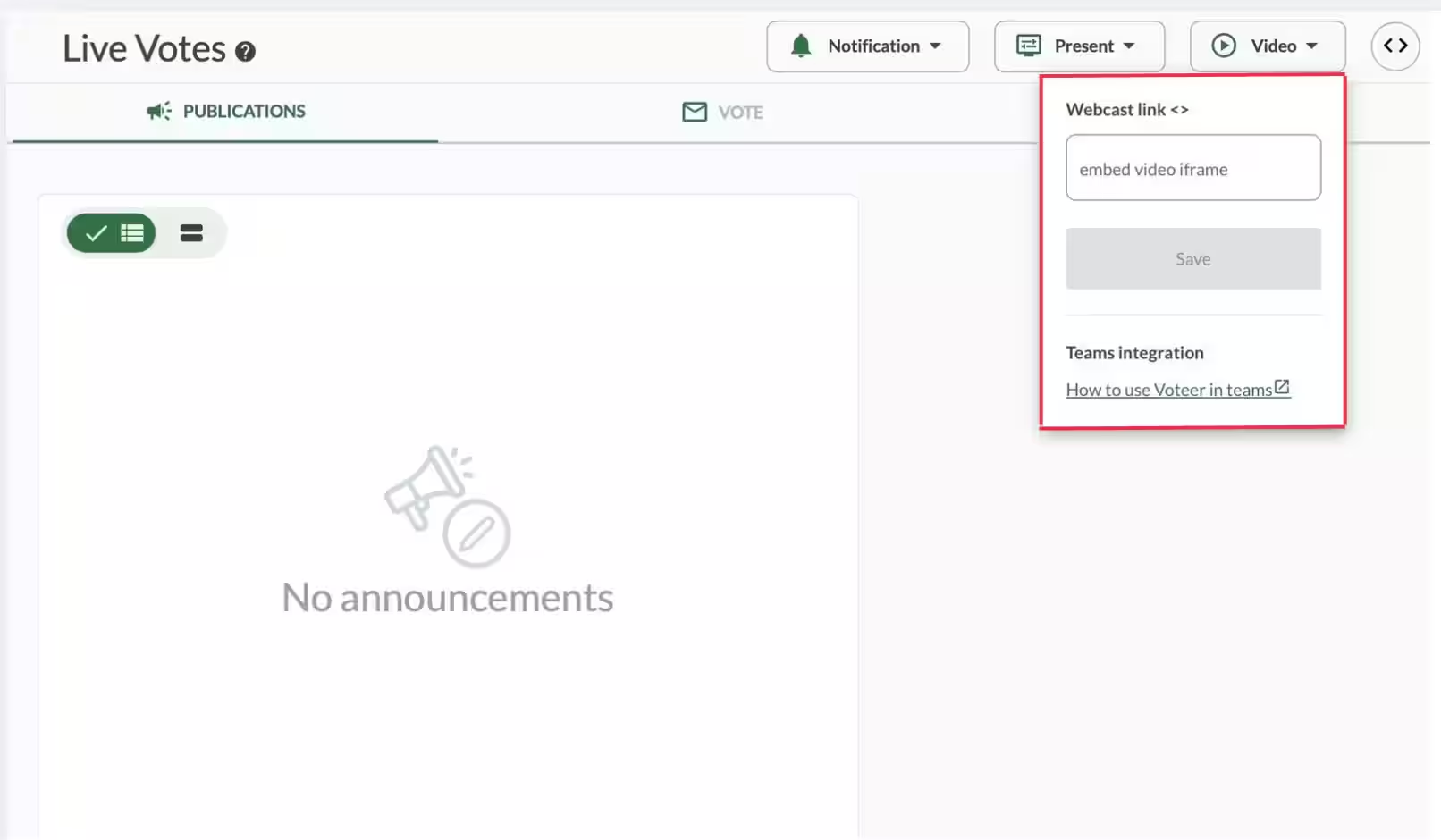
Webcast Link: Video at the Heart of the Voter Experience
The Webcast Link allows you to embed a live video stream directly inside the voting application.
Ideal Use Case:
- General Assemblies with professional multi-camera capture (4 to 5 cameras)
- Broadcasting the main feed (speaker, wide shots, alternate angles)
- External streams or videoconferences (YouTube, Vimeo, RTMP, etc.)
Major Advantage: Participants stay in a single interface. They can watch the live assembly capture and cast their votes in real time without changing tabs or applications. The experience is smooth, professional, and far more engaging.
iFrame Code: Integrate the Voting App into Your Platform
The iFrame Code lets you embed the entire voter application into your own environment:
- Event website
- Intranet or extranet portal
- Event management platform
- Dedicated shareholder or member area
This creates a fully centralized and consistent experience for voters.
Easy Integration with Teams and Zoom
Voteer integrates directly with Microsoft Teams and Zoom, allowing you to:
- Embed the voting experience seamlessly inside your Teams or Zoom meeting
- Let participants follow the live Webcast and vote without leaving the videoconference
- Offer a smooth, unified experience for large General Assemblies
For detailed instructions, check our guide: How to Use Voteer with Zoom.
Related Article
- How to Use Voteer with Microsoft Teams
Learn how to integrate Voteer directly into Microsoft Teams for your General Assemblies. Combine live Webcast, voting, and discussions in one meeting.
→ How to Use Voteer with Microsoft Teams
Explore More Topics
- Voteer Now Integrates with Zoom: A Major Step Forward for Secure Online & Hybrid Voting
Discover how Voteer integrates with Zoom to simplify secure online and hybrid General Assemblies with live Webcast and real-time voting
→ Voteer Now Integrates with Zoom: A Major Step Forward for Secure Online & Hybrid Voting
Support
Need help?
👉 Email: support@voteer.com
👉 Or use the live chat directly in Backstage