Resolution Voting in Voteer is a simplified and user-friendly voting system designed to make collective decision-making faster and more efficient. Built specifically to save time for both organizers and voters, it offers predefined responses, intuitive visual aids, and powerful quick actions.
Key Features of Resolution Voting
1. Predefined Responses – Save Time from the Start
With Resolution Voting, the answers are already written by default:
- For
- Against
- Abstain
This eliminates the need to manually type options for every vote. Voters can express their position with a single click, making it ideal for assemblies with multiple resolutions.
2. Color Coding – Clear Guidance for Voters
To help voters quickly understand the options, each choice has a distinct color code:
- For → Green
- Against → Red
- Abstain → Grey
These colors provide immediate visual recognition and improve the voting experience.

White Vote Management
The White vote option is available and enabled by default for Resolution Voting
- The organizer can customize its label (ex: “Abstain”, “No opinion”, “Blank vote”).
- A blank vote is considered a non-expressed vote and is not included in the calculation of results.
- However, the number of blank votes is recorded and available in the reports for reference.
- If the organization wishes blank votes to be included in the results, simply add a specific response labeled “Abstention” to the list of choices
Advanced Parameters (for Resolution Voting)
These are the main advanced settings available for this type of vote:
- Secret Ballot: Allows you to make the question secret or open (only possible if the overall scrutiny is not forced to secret).
- Groups: Associate the question to specific electoral colleges / groups of voters.
- Display to Voters: Choose which information is visible to voters:
- Number / % of blank votes
- Number / % of voters
- Number / % of votes cast
- Participation rate
- Display of Results: Define what appears in the results:
- Number of votes (always enabled by default)
- Percentage (% of expressed votes)
- Number of votes
- Associated Publications: Link one or more publications (documents, reports, etc.) directly to the question so they appear alongside it.
What Voters See: Vote All Buttons
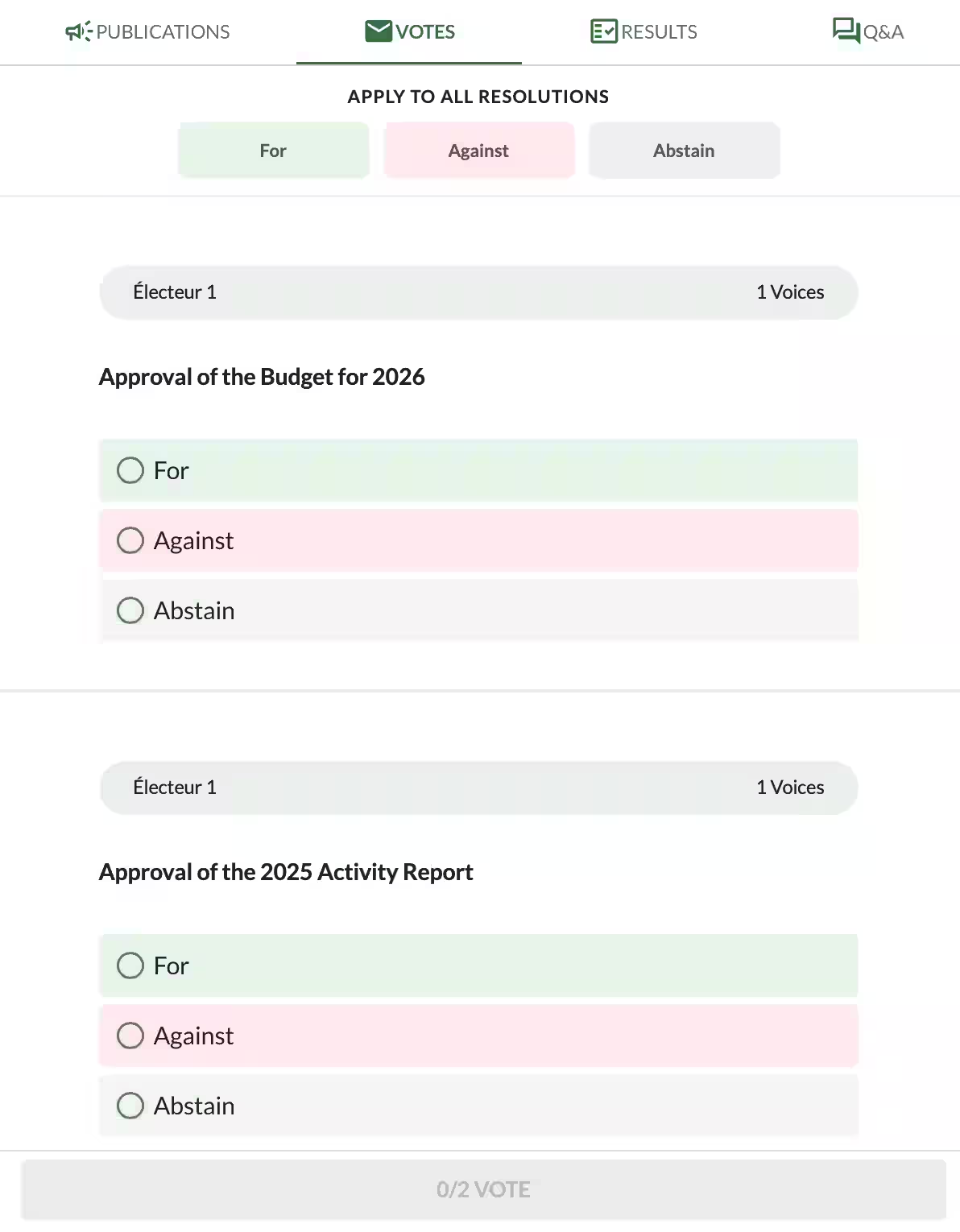
When multiple resolutions are open at the same time, voters benefit from a clear and efficient interface. At the top of the page, they can see the “Apply to All Resolutions” section with three large buttons:
- For (Green)
- Against (Red)
- Abstain (Grey)
Voters can use these Vote All Buttons to instantly apply the same choice to every resolution in one single click.
This feature is extremely useful during large meetings or general assemblies with many resolutions to vote on, saving a considerable amount of time.
Below this section, each resolution appears one after another with its individual For, Against, and Abstain options, allowing voters to adjust specific votes if needed.
Related Article
- How to Create Single and Multiple Choice Votes in Voteer
Discover how to configure simple and advanced multiple-choice votes, including options, settings, and best practices.
→ How to Create Single and Multiple Choice Votes in Voteer
Explore More Topics
- The Guide to Voting in Condominium General Meetings
Discover best practices, tips, and step-by-step guidance for organizing successful condominium and co-ownership general meetings.
→ The Guide to Voting in Condominium General Meetings
Support
Need help?
👉 Email: support@voteer.com
👉 Or use the live chat directly in Backstage