Voteer allows organizers to create simple choice (single select) and multiple choice questions. These are the most common and versatile question types used in general meetings and electronic votes.
Creating a Single and Multiple Choice Question
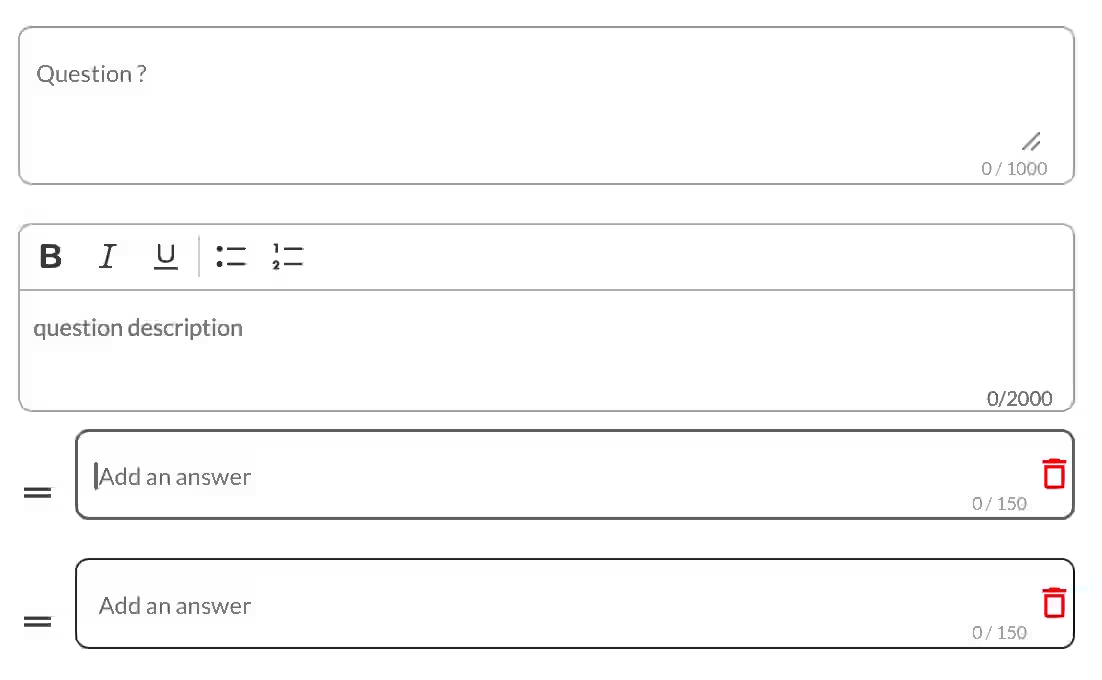
When creating a new question, you can define:
- Question Title: The main question asked to voters.
- Question Description: Additional explanatory text displayed below the title.
- Answers: Add as many response options as needed (free text).
Key Difference:
- Single Choice: The voter can select only one answer.
- Multiple Choice: The organizer sets a minimum and maximum number of answers the voter can select.
Blank Vote
Enabled by default.
- You can customize the label (ex: “Abstain”, “Blank Vote”, “I do not wish to express an opinion”).
- Blank votes are not counted in the final results (considered non-expressed).
- The number of blank votes is still visible in the reports.
- To count abstention, add a specific answer “Abstain” in the list.
Advanced Parameters (for Single & Multiple Choice)
These are the main advanced settings available for this type of vote:
- Secret Ballot: Allows you to make the question secret or open (only possible if the overall scrutiny is not forced to secret).
- Groups: Associate the question to specific electoral colleges / groups of voters.
- Display to Voters: Choose which information is visible to voters:
- Number / % of blank votes
- Number / % of voters
- Number / % of votes cast
- Participation rate
- Display of Results: Define what appears in the results:
- Number of votes (always enabled by default)
- Percentage (% of expressed votes)
- Number of votes
- Associated Publications: Link one or more publications (documents, reports, etc.) directly to the question so they appear alongside it.
Specificities of Multiple Choice
- You can set a minimum and maximum number of answers the voter is allowed to select.
What the Voter Sees
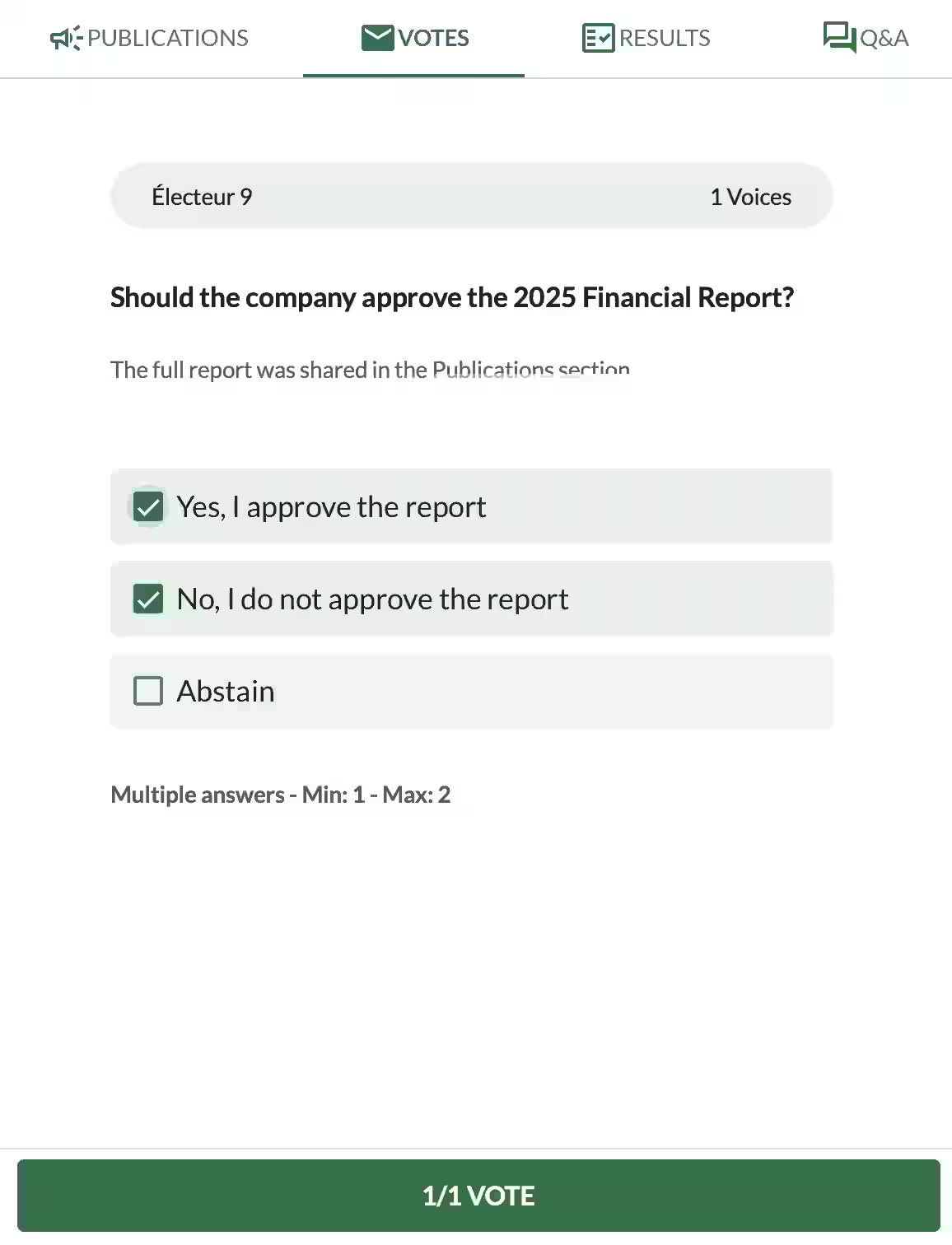
Voters benefit from a clean and intuitive interface when answering questions.
They can see:
- The question title clearly at the top
- A description providing additional context (when added by the organizer)
- The list of answer options
- The Abstain option (if enabled)
- Information about selection limits
- A progress indicator at the bottom showing remaining selections
The design is simple, responsive, and user-friendly across all devices.
Related Article
- Quick Start: Configure and Run a Ballot in Voteer
Learn the essential steps to quickly set up and launch your first ballot on the Voteer platform.
→ Quick Start: Configure and Run a Ballot in Voteer
Explore More Topics
- The Guide to Voting in Condominium General Meetings
Discover best practices, tips, and step-by-step guidance for organizing successful condominium and co-ownership general meetings.
→ The Guide to Voting in Condominium General Meetings
Support
Need help?
👉 Email: support@voteer.com
👉 Or use the live chat directly in Backstage