This quick start guide explains how to configure and run a ballot in Voteer through five structured steps.
Before you begin, make sure you have prepared:
- Your voter list in the correct Voteer format
- The documents to be published (financial reports, supporting materials, etc.)
- The resolutions or list of candidates to be submitted to vote
Voteer structures each ballot through a clear and sequential workflow, ensuring control, traceability, and governance integrity from initial setup to final reporting.
While the process follows a structured model, the platform remains fully flexible — you can adapt configuration settings, security levels, and participation rules to match your governance requirements.
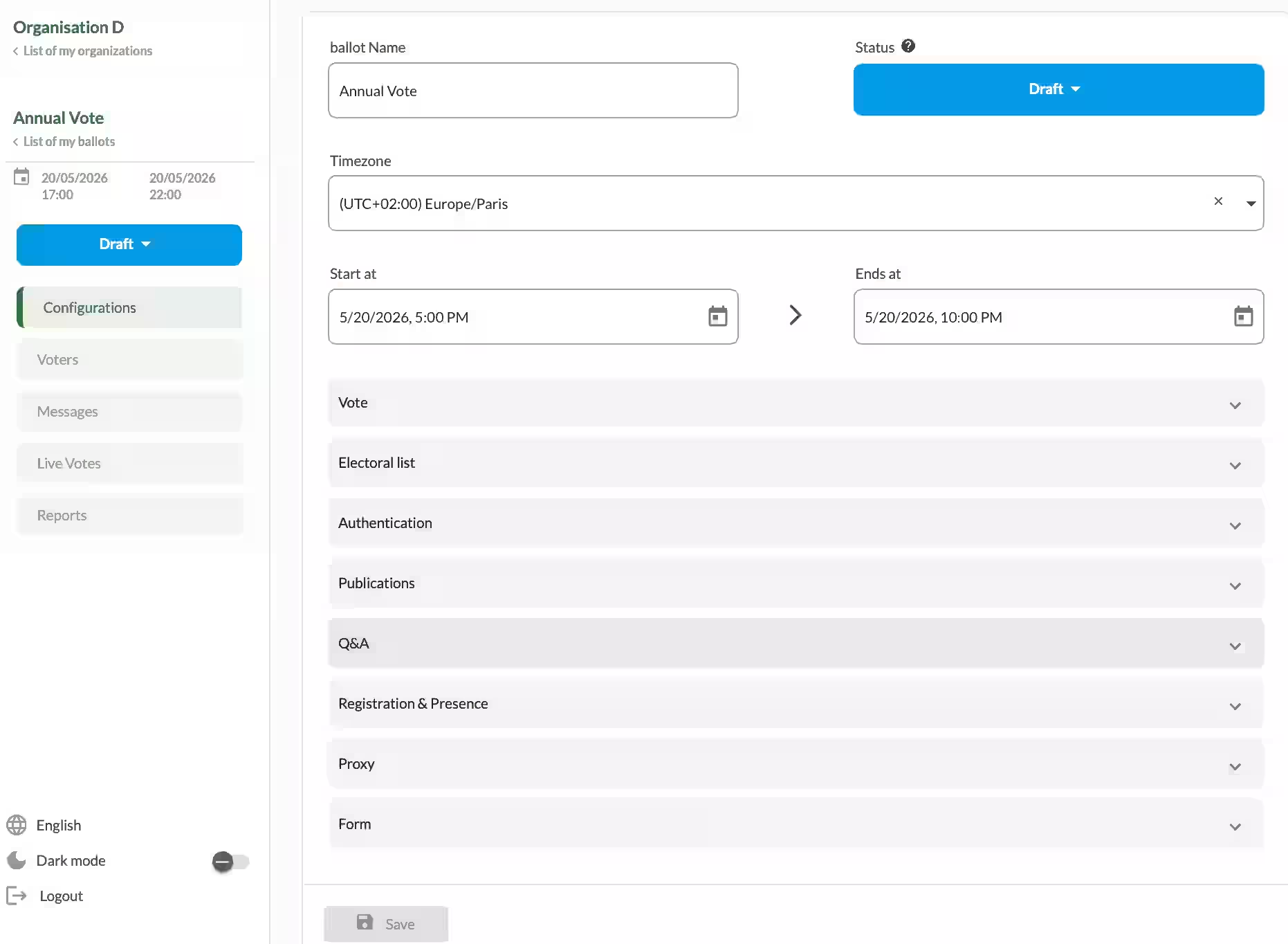
Step 1 — Ballot Configuration (Configurations)
Define the structure and security framework of your ballot:
- Ballot name and voting period (date, time zone)
- Security level and authentication requirements
- Proxy rules and quorum settings
- Activation of modules (Q&A, publications, registration, attendance, forms)
At this stage the ballot remains in Draft status and is not accessible to voters.
Step 2 — Voter List Management (Voters)
Upload and structure your electoral roll:
- Import voters via CSV or create them manually
- Assign voting weight and eligibility rules
- Assign groups (colleges) if required
- Access and manage each voter’s detailed profile
The platform provides real-time tracking of:
- Registration status
- Proxy allocation
- Attendance and check-in status
Organizers can monitor participation data dynamically from a centralized dashboard.

Step 3 — Communication Management (Messages)
Prepare and manage all voter communications:
- Send personalized voting credentials via Email/SMS
- Schedule targeted reminders
- Trigger follow-ups for non-voters
- Monitor delivery reports to confirm receipt
Each message is traceable and linked to a delivery status.
Step 4 — Ballot Supervision (Live Votes)
Manage the voting session in real time:
- Create, validate and open voting questions
- Monitor participation without revealing vote content
- Manage Q&A and publications
- Present questions and results in Presentation Mode
- Integrate Microsoft Teams or Zoom
Each voting question follows its own lifecycle.
Step 5 — Reporting & Audit (Reports)
Close, decrypt, and document the ballot:
- Decrypt ballots using Vault or Distributed Key Management
- Generate results reports
- Export attendance records and proxy files
- Access voter activity logs
- Verify sealing code integrity
All reports are downloadable and audit-ready.
⚠️ Ballot Status (Important)
A ballot progresses through different statuses during its lifecycle.
👉 Voters can only access the voting platform when the ballot is in “On Going” status.
- Draft → configuration phase (not accessible to voters)
- On Going → voting is open and accessible
- Closed → voting is completed
👉 Make sure your ballot is in On Going status before inviting voters to participate.
Ballot Status & Sealing Process
The transition from Draft to On Going automatically seals the ballot configuration, preventing structural changes and preserving procedural integrity.
⚠️ Voting Question Status (Important)
Each voting question also has its own status.
Only questions in Open status are accessible to voters.
There are two ways to open a question:
1. Automatic opening
- Defined during configuration
- Questions open and close automatically based on scheduled times
- 👉 Recommended for voting over a defined period
2. Manual opening
- Controlled by the organizer in real time
- Questions can be opened and closed during the session
- 👉 Recommended for live meetings to follow discussions and agenda flow
Voteer provides a structured and controlled workflow to manage ballots from configuration to final reporting, ensuring transparency, security, and full governance control.
Related Article
- How to Vote with Voteer
Learn how to easily cast your vote on the Voteer platform, from accessing your ballot to submitting your choices securely.
Explore More Topics
- Voteer Now Integrates with Zoom: A Major Step Forward for Secure Online & Hybrid Voting
Discover how the new Zoom integration makes hybrid and online voting even smoother, more secure, and user-friendly.
Support
Need help?
👉 Email: support@voteer.com
👉 Or use the live chat directly in Backstage