How to Manage Your Team and Roles in Backstage
In the organization space, the organizer can invite new members, modify their roles, check the status of their account creation, or remove them from the organization.
Benefits of team & roles management: Assign precise roles to control who can create, edit, or only view elections.
Available Roles
Each team member is assigned a specific role with defined permissions:
How to Manage Your Team
You can perform the following actions from your organization settings:
- Invite a new member to the organization
- Modify a member’s role
- Check whether the invited person has created their account
- Remove a member from the organization
Steps to Invite a New Member
- In the Backstage menu, click on the name of your organization.
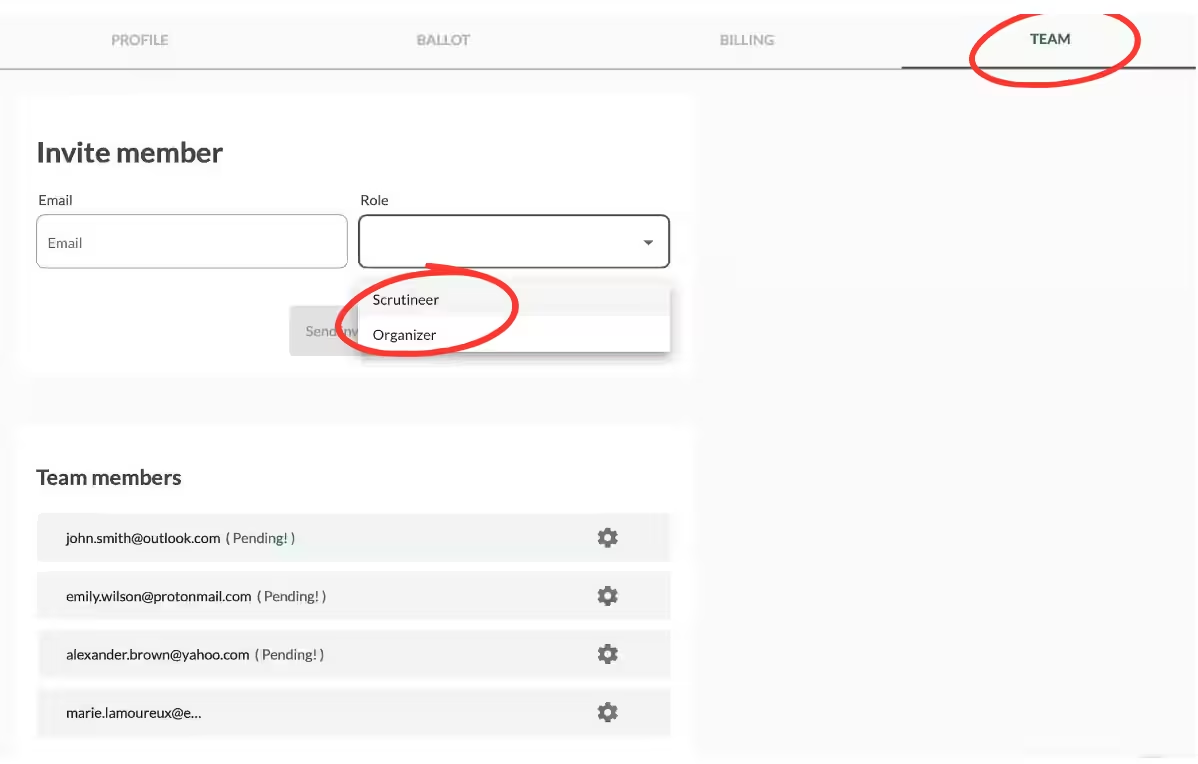
- Go to the Team tab (top right).
- Click on Invite member.
- Enter the email address of the person you want to invite.
- Select the appropriate role (Organizer or Scrutator).
- Send the invitation.
The invited person will receive an email and will be able to join the organization after accepting the invitation
Important Notes
- Only Organizers can invite new members and manage the team
- Scrutators have view-only access and cannot perform any actions.
- You can change a member’s role or remove them from the organization at any time.
Each organization has its own independent team and role settings
This role management system allows you to collaborate securely while maintaining full control over your elections.
Related Article
- How to Create and Manage Organizations in Backstage
Learn how to create, switch between, and manage multiple organizations in your Backstage account.
→ How to Create and Manage Organizations in Backstage
Explore More Topics
- 10 Reasons Why Voting Is Highly Important
Discover the key advantages of online voting: increased participation, time-saving, accessibility, security, and much more.
Support
Need help?
👉 Email: support@voteer.com
👉 Or use the live chat directly in Backstage