The Guest feature allows you to add people to a voting event who can attend a general meeting (GM) without having voting rights.
Guests can receive an invitation, confirm their attendance, access shared documents, and check in using a QR code when they arrive.
Voteer also allows organizers to track guest attendance separately from voters.
1. What is the difference between a voter and a guest?
A voter has voting rights according to the rules of the voting event.
A guest, on the other hand, can attend the event without being allowed to vote.
Guests can:
- Receive an invitation to the general meeting.
- Confirm whether they will attend.
- Access general meeting documents made available to them.
- Check in using a QR code on the day of the event.
Note: Guests cannot vote, give proxies, or receive proxies.
This feature is particularly useful for general meetings where some participants need to attend discussions without taking part in voting decisions.
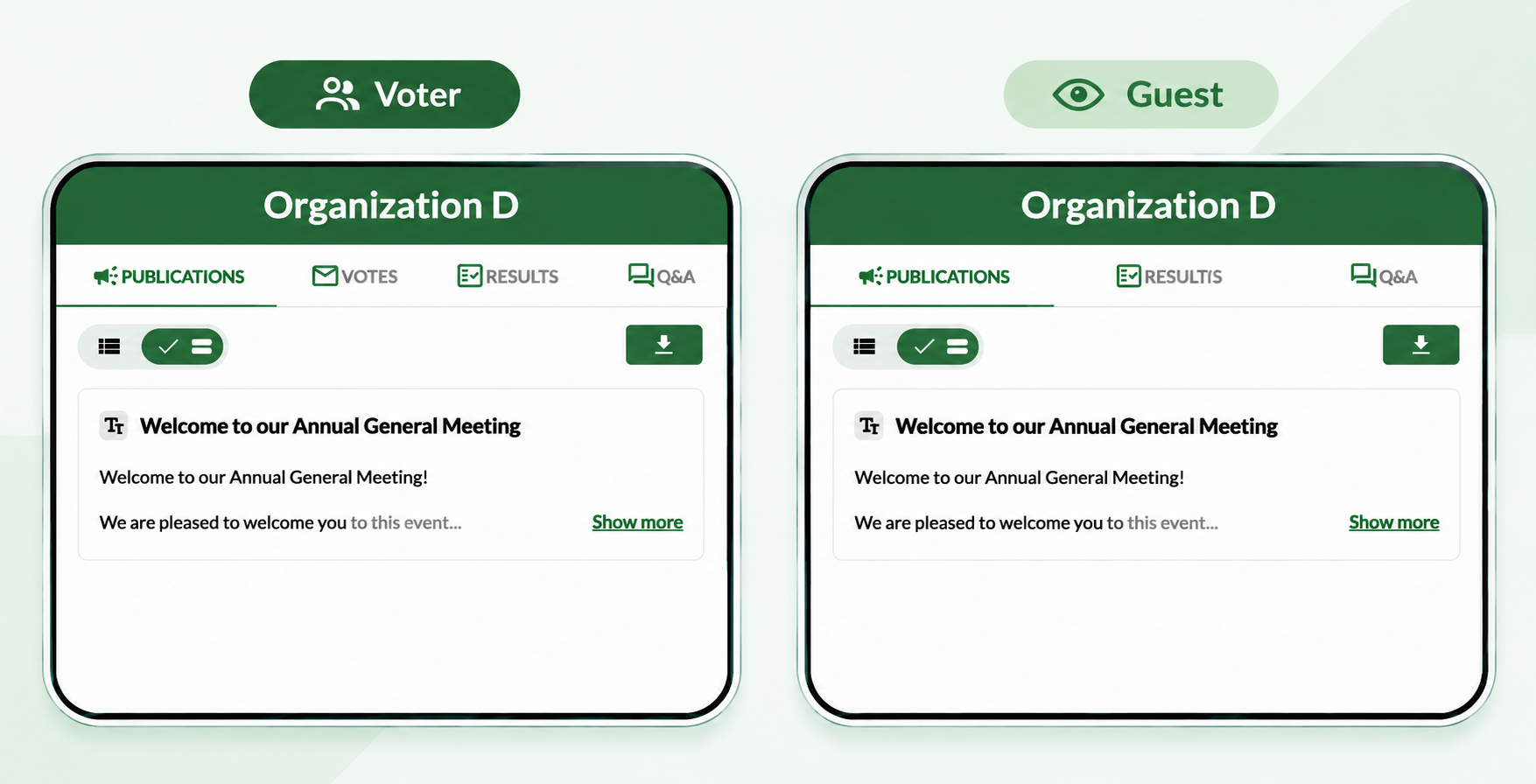
What does a voter see compared to a guest?
The Voteer interface adapts to each participant's status. A voter has access to a Votes tab to participate in ballots, while this tab does not appear in a guest's interface.
Guests can still access publications, results, and the Q&A section, depending on the features made available by the organizer.
2. Add a guest from the voter profile
To assign guest status to someone:
- Open the relevant voting event.
- Go to the Voters section.
- Open the profile of the person concerned.
- Find the Guest section.
- Enable the Activate guest status option.
- Click Save to apply your changes.
Once guest status is enabled, the person is considered a guest and does not have voting rights.

3. Add guests using a CSV import
You can also add multiple guests when importing a voter list.
To do this, use the guest field in your CSV file to identify people who should be assigned guest status.
This method is particularly useful when preparing a general meeting with a large number of participants.
For detailed import instructions, see our article: How to create your voter list: add voters manually or import via CSV.
4. View guest statistics
In the Voters section, Voteer provides dedicated summary cards for guests.
You can view:
- Guests: the total number of people with guest status.
- Guest registrations: the number of registered guests.
- Guest attendance: the number of guests marked as present.
These statistics appear alongside voter, registration, proxy, and attendance statistics.
They allow organizers to easily distinguish guests from participants who have voting rights.

5. View and download guest attendance reports
Voteer also allows you to access guest attendance information from the Reports section.
To download the report:
- Go to Reports.
- Open the Statistics tab.
- Find the Guest attendance row.
- Click the Excel icon to download the file.
This report allows you to review guest attendance information and keep a record of their participation in the general meeting.

6. When should you use guest status?
Guest status is particularly useful for general meetings that include participants without voting rights.
For example, an organization may invite observers, speakers, or people helping to organize the meeting.
These participants can receive relevant information, confirm their attendance, and check in when they arrive, without being authorized to vote.
This allows organizers to manage all participants in Voteer while keeping voters and guests clearly separated.